Billing and plans
This page shows you how to see your current plan, choose a different one, and manage your seats.
Members with the Manage Billing permission. Other members see Manage > Billing greyed out.
See your plan and usage
Go to Manage > Billing.
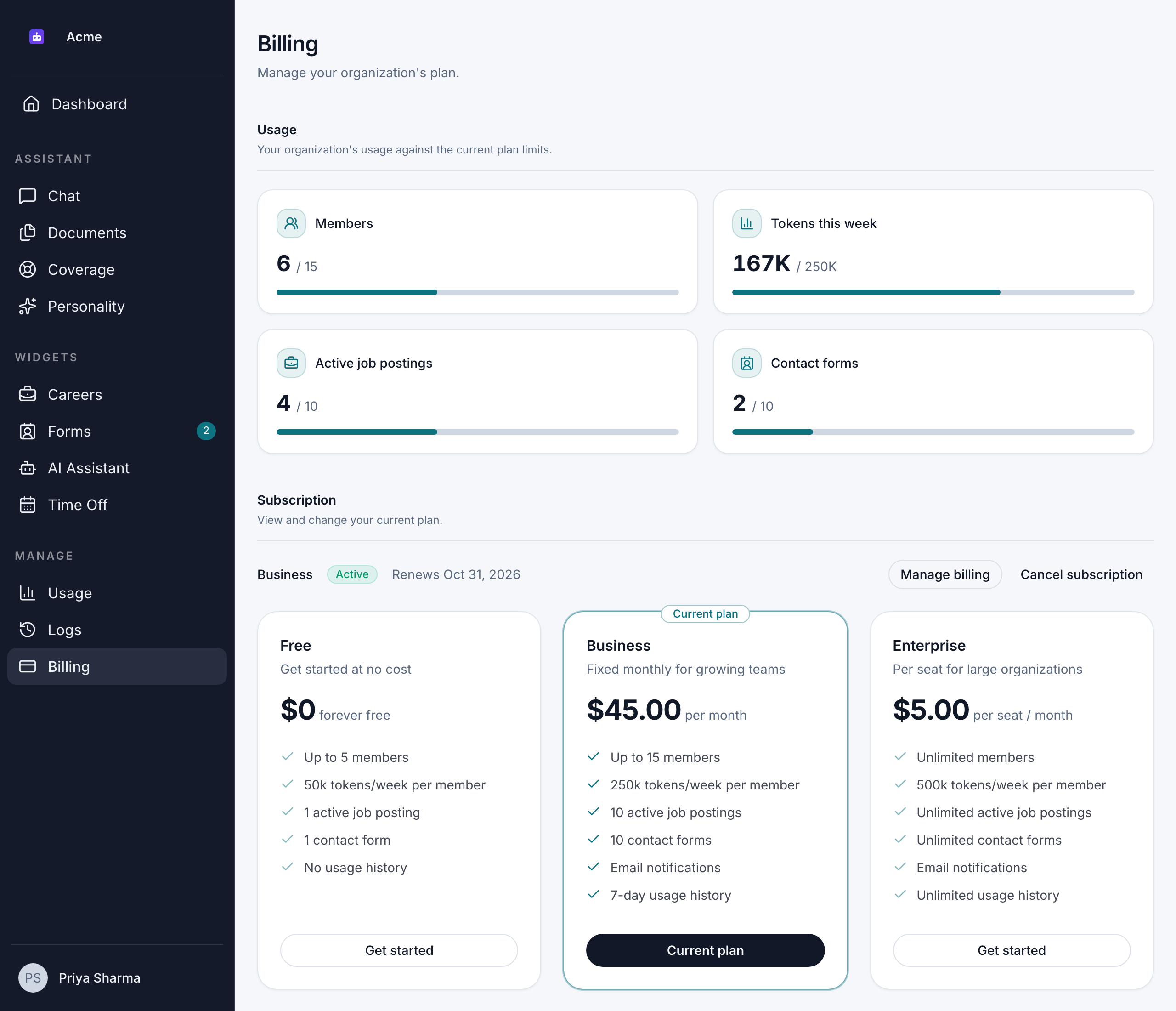
Usage shows your organization's use against your plan's limits: Members, Tokens this week, Active job postings, Contact forms and Documents.
Subscription shows your current plan with:
- its status:
- Active: paid up and running.
- Past due: a payment failed.
- Unpaid, Canceled or Incomplete.
- your number of seats, on plans billed per seat
- Renews … or Ends …, with the date
Below it, the available plans are shown as cards: Free, Business ($45 a month) and Enterprise ($5 a seat a month, with a minimum of 10 seats). Each card shows the plan's price, its limits, such as members, tokens per week per member and documents, and the features it includes, such as Shifts or Coverage. Your plan is marked Current plan. For everything each plan includes, see Plans.
Choose a paid plan
If you don't have a paid subscription yet:
- On the plan you want, click Get started.
- You go to Stripe's secure checkout page. Enter your payment details there. Bizbot never sees your card details.
- When payment succeeds, you come back to Billing and see "Payment successful! Your plan is now active."
If you leave the checkout page without paying, you see "Checkout canceled — your plan was not changed."
On plans billed per seat, you start with 1 seat per member, or the plan's minimum number of seats if that's higher.
Change plans
If you already have a paid subscription:
- Click Get started on the new plan.
- Check the estimate. The dialog shows the estimated charge or credit on your next invoice, because the change is prorated.
- Click Confirm change. You see "Changed to …", with the plan's name.
To move to the Free plan, click it and then Confirm switch. If you have a paid subscription, it's canceled at the end of the billing period: you keep your paid plan until then, and you see "Your paid plan stays active until …, then switches to Free." Otherwise the switch is immediate, and you see "Switched to Free".
If the new plan has lower limits, Bizbot keeps your oldest active job postings, contact forms and time-off policies and deactivates the newest ones beyond the new limits. Nothing is deleted, and you can turn them back on after you deactivate others or upgrade again. See Plan limits.
If the new plan leaves out features you use, they stop working when the change takes effect, and what you set up is kept for if you upgrade again. See Plan features. When you leave a plan with Coverage, the dialog warns you: "Coverage stops working on …. Your coverage documents are kept." ("immediately" for a change that applies straight away).
Manage seats
On plans billed per seat, each member takes a seat, and so does each invite that's still valid.
- On Billing, click Manage seats.
- Use the buttons to add or remove seats.
- Check the estimated charge or credit on your next invoice. Changes are prorated right away.
- Confirm. You see "Seat count updated to …".
You can't go below your current number of members ("Remove members first") or the plan's minimum number of seats. Removing a member doesn't lower your seat count on its own.
If every seat is taken, you can't send new invites until you add seats or revoke a pending invite. See Invite your team.
Update your card or cancel
- Update your payment method: on Billing, click Manage billing. It opens Stripe's billing portal, where you can change your card. You come back to Billing when you're done.
- Cancel your subscription: click Cancel subscription and confirm on Stripe's page. When the subscription ends, your organization moves to the Free plan.
Both buttons only appear once your organization has paid through Stripe.
If a payment fails or a subscription ends
- A payment fails: your plan shows Past due. Your plan keeps working while Stripe retries the payment. Update your card with Manage billing to keep it.
- A subscription ends: when you cancel, or when Stripe stops retrying a failed payment, your organization moves to the Free plan. Free's limits apply straight away: the newest job postings, contact forms and time-off policies beyond them are deactivated, and features that aren't on Free stop working. Nothing is deleted. See Plan limits and Plan features.
To get your paid plan back, choose it again under Billing.
Invoices and receipts
Bizbot doesn't show invoices or receipts in its own pages. Stripe's billing portal, opened with Manage billing, holds your billing details.