Members
This page shows you how to manage the people in your organization once they've joined: their roles, their setup and removing them. To add people, see Invite your team.
Members with the Manage Members permission. Some parts of a preset also need Manage Time Off or Manage Token Usage. Any member can see the members list.
See your members
Click your organization's name at the top of the sidebar. The Members section lists everyone in the organization, with their name, Email and the date they Joined. Admins are marked Admin, and you're marked You.
If you have Manage Members, hover over a member to see the buttons for editing their roles and applying a preset.
Change a member's roles
- In Members, hover over the member and click the edit roles button.
- In Edit member roles, tick the roles they should have and untick the ones they shouldn't.
- Click Save roles. You see "Member roles updated."
The change applies straight away. Roles also decide which knowledge base documents the member can use. See Roles and permissions and Control document access.
You can't take the Admin role away from the last admin. See The last admin.
Member presets
A member preset is a saved setup you can copy onto a member in one step: their roles, weekly shifts, time-off policies and weekly token limit. Use it for common setups, such as "Sales rep, full time" or "Part-time support".
A preset is a copy, not a link. Once applied, the member's setup belongs to them: editing or deleting the preset later doesn't change members who already received it.
Create a preset
- On your organization's page, in the Presets section, click New preset.
- Under Details, enter a Name and, optionally, a Description. Names must be unique.
- Under Roles, tick at least 1 role.
- Under Shifts, choose a shift or Off for each day of the week. At least 1 day needs a shift. This needs Manage Time Off.
- Under PTO policies, tick the time-off policies the member should have. This needs Manage Time Off.
- Under Weekly token limit, leave Use org default on, or turn it off and enter a limit. This needs Manage Token Usage.
- Click Create preset.
Sections you don't have permission to change are marked "Requires Manage Time Off" or "Requires Manage Token Usage".
The Presets list shows each preset's roles, working days, number of policies, token limit and when it was last updated.
Apply a preset to a member
- In Members, hover over the member and click the apply preset button.
- Choose a Preset and click Continue.
- Check what will change. The confirmation shows each section before and after: roles, shifts, PTO policies and token limit. It warns you if:
- The member has pending time-off requests on policies they would lose. Those requests stay pending.
- You're applying it to yourself. You may lose permission to manage members.
- Click Replace and apply.
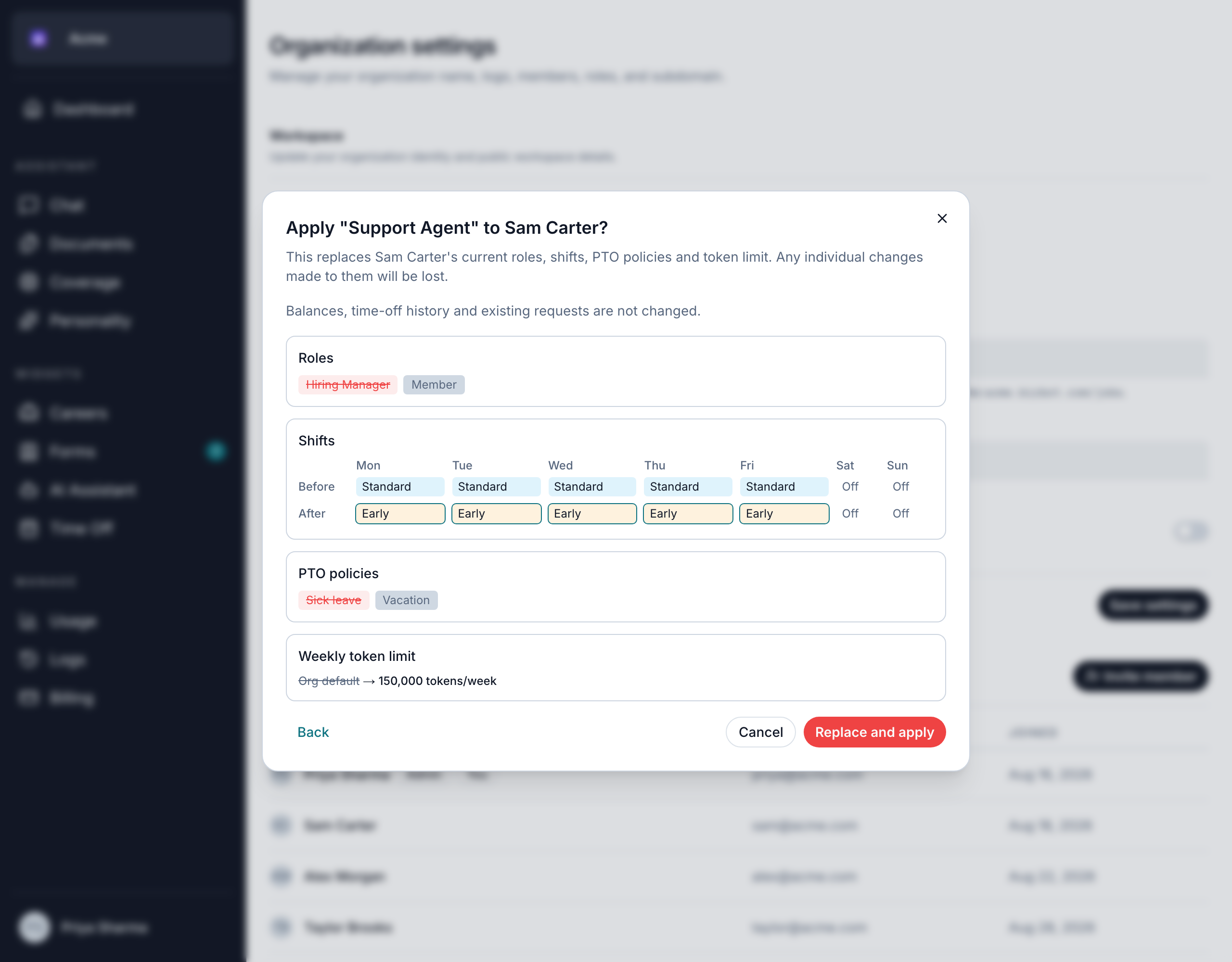
Applying a preset replaces the member's roles, shifts, time-off policies and token limit completely. Any individual changes made to them are lost. Their time-off balances, history and existing requests aren't changed.
Edit or delete a preset
Open the preset's actions menu:
- Edit changes the preset. It doesn't change members who already received it.
- Delete removes the preset. Members who already received it keep their current setup.
A preset marked Needs attention refers to a shift or time-off policy that has been archived. You can't apply it until you edit it and replace that item. If a role in a preset is deleted, it's removed from the preset.
Remove a member
- In Members, hover over the member and click the edit roles button.
- Click Remove.
- Click Remove member to confirm. You see "… removed from the organization."
The person loses access to your organization straight away. They can only come back with a new invite. You can't remove yourself this way: to leave, see Leave an organization.
What happens to their work:
- Documents they uploaded stay in your knowledge base.
- Coverage responsibilities they owned no longer have an owner. They show as No owner on the Map and Orphaned on Continuity, where a coverage manager can assign them to someone else. To avoid this, hand their responsibilities over before removing them. See Transfer responsibilities.
- Seats: on plans billed per seat, their seat becomes free. Your seat count doesn't go down on its own. See Billing and plans.
The last admin
An organization with other members must always have at least 1 member with the Admin role. Bizbot won't let you remove the last admin, or take the Admin role away from them. You see "This organization needs at least one Admin. Make another member an Admin first." Give someone else the Admin role first.