Organization settings
This page shows you how to set your organization's name, logo and public address, and the rules for who can join.
Members with the Manage Organization permission change these settings. Any member can view them.
Open organization settings
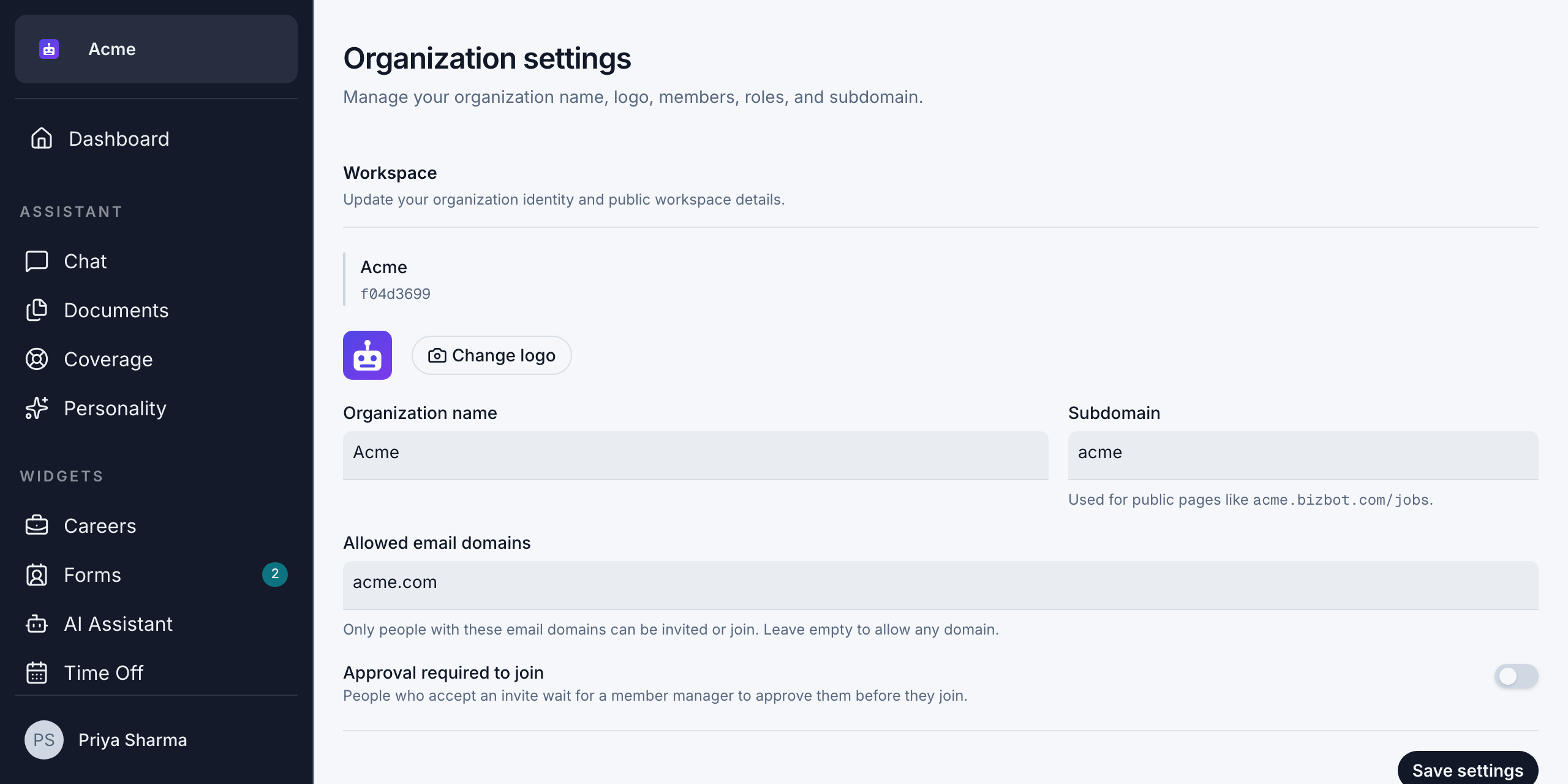
Click your organization's name at the top of the sidebar. The Organization settings page opens, with these sections in order:
- Workspace: name, logo, subdomain and joining rules. Covered on this page.
- Members: see Members and Invite your team.
- Roles: see Roles and permissions.
- Presets: only for members with Manage Members. See Member presets.
- Danger zone: Leave Organization. See Leave an organization.
Where new contact form submissions and job applications are emailed isn't set here: each form and each job posting has its own notification email. See Set the notification email and Choose who gets new applications.
The top of Workspace shows your organization's name and its organization token. The token is an ID for your organization. It can be used in widget links on websites where your subdomain doesn't work.
Change the name and logo
- To change the logo, click Change logo and choose an image. You see "Organization logo uploaded."
- To change the name, edit Organization name.
- Click Save settings. You see "Organization settings saved."
The logo and name appear at the top of the sidebar for every member, and on your public pages.
Change your subdomain
Your subdomain is the first part of your organization's public address, such as acme in acme.bizbot.com. It's used for all your public pages:
- your careers page, such as
acme.bizbot.com/jobs - your contact forms, such as
acme.bizbot.com/contact/… - your website assistant, at
acme.bizbot.com/assistant
To change it:
- Edit Subdomain.
- Click Save settings.
The rules:
- Allowed characters: lowercase letters, numbers and single hyphens. Bizbot turns other characters into hyphens, and capitals into lowercase.
- Reserved words: you can't use
wwworportal. - Unique: each subdomain can only be used by one organization.
Bizbot picks a subdomain from your organization's name when it's created.
Changing your subdomain changes every public link. Links you've shared and widgets embedded on your website with the old address stop working. Update them everywhere after you change it.
Choose who can join
- Allowed email domains: only people with email addresses at these domains can be invited or join. Enter them separated by commas, such as
acme.com, acme.co.uk. Leave it empty to allow any domain. If you enter something that isn't a domain, you see "Not a valid domain: …". - Approval required to join: when it's on, people who accept an invite wait until a member with Manage Members approves them.
Click Save settings after changing either one. See Invite your team for how these work with invites.