Roles and permissions
This page shows you how to create roles and decide what each one can do. For the full list of permissions, see the Roles and permissions reference.
Members with the Manage Roles permission create, edit and delete roles. Giving roles to members needs Manage Members. Everyone else can view roles but not change them.
How roles work
- A permission allows one thing, such as Manage Billing or View Documents.
- A role is a named set of permissions, such as "Hiring Manager".
- A member can have several roles, and gets every permission from all of them.
Roles also decide which knowledge base documents a member can use. See Control document access.
Every organization starts with 2 roles:
- Admin: has every permission, marked Required. You can't rename it, change its permissions or remove it. The person who creates the organization gets it.
- Member: the role everyone gets when they join. You can change its permissions like any other role.
Create a role
- Click your organization's name at the top of the sidebar, and scroll to Roles.
- Click Add role. A role called "New Role" is created and selected.
- Enter a Role name, such as "Hiring Manager". It saves when you click away or press Enter.
- Under Permissions, turn each permission on (Allowed) or off (Denied). Each change saves right away. Hover over a permission's help icon to see what it allows.
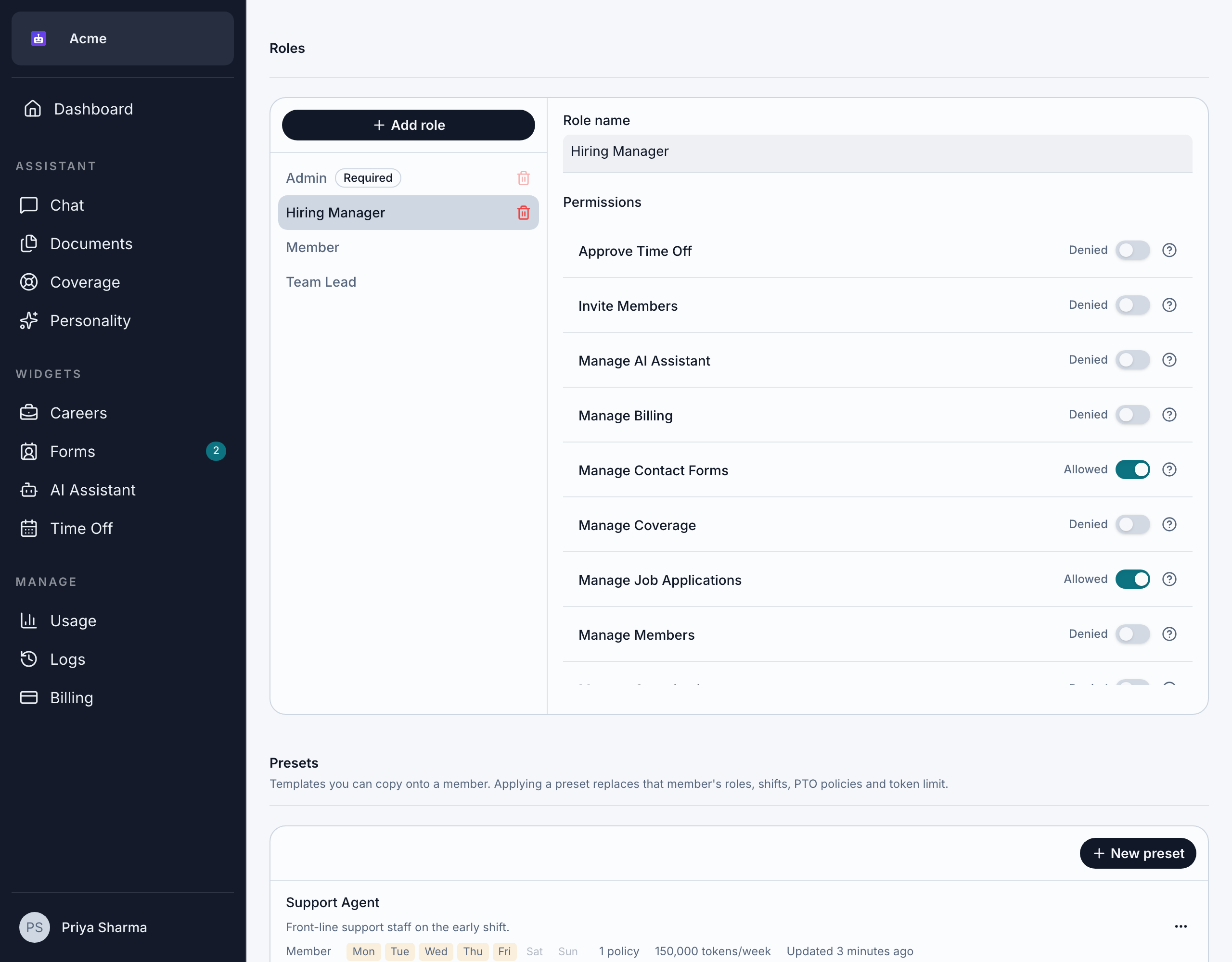
A new role starts with every permission turned on. Turn off everything the role shouldn't have before you give it to anyone.
Change a role's permissions
Select the role in the list and turn permissions on or off. The change applies straight away to every member with that role. It also appears in the action log. See Action log.
Give a role to a member
In the Members section, edit the member's roles and tick the role. See Change a member's roles. People who join always start with the Member role.
Rename or delete a role
- To rename a role, select it and change its Role name.
- To delete a role, hover over it in the list, click its remove button, and click Remove role. The role is removed from every member who had it, and from every knowledge base document that used it. You see "… removed."
A document whose only role you delete becomes hidden from everyone. Check your documents' visibility after deleting a role. Deleting a role also takes it out of any member presets.
The Admin role and the last admin
An organization with other members must always have at least 1 admin. Bizbot won't let the last admin lose the Admin role, be removed or leave without choosing a new admin. You see "This organization needs at least one Admin. Make another member an Admin first."
A custom role with every permission turned on can do everything an admin can in the app, but it isn't the Admin role. For example, the last-admin rule only counts members with the Admin role. See Admins.
Example roles
These examples only use permissions that exist in Bizbot:
| Role | Permissions to turn on | Good for |
|---|---|---|
| Hiring Manager | Manage Job Applications, View Documents, Use Coverage | Someone who runs hiring and uses the team's documents. |
| Team Lead | Approve Time Off, Use Coverage, Manage Coverage, View Documents | Someone who approves their team's time off and keeps an eye on who can cover what. |
| Office Manager | Manage Time Off, Manage Members, Manage Contact Forms, View Documents, Modify Documents | Someone who sets up time off, onboards new members and looks after forms and documents. |
Remember to also turn on Use Coverage for anyone who should own responsibilities or cover for teammates, and View Documents for anyone who should get answers from your knowledge base.