Usage
This page shows you how to check how many tokens you've used, and how members with permission control each member's weekly limit. For the numbers and rules, see Usage and limits.
Any member can see their own usage. Seeing everyone's usage, setting limits and granting top-ups needs the Manage Token Usage permission.
Your usage
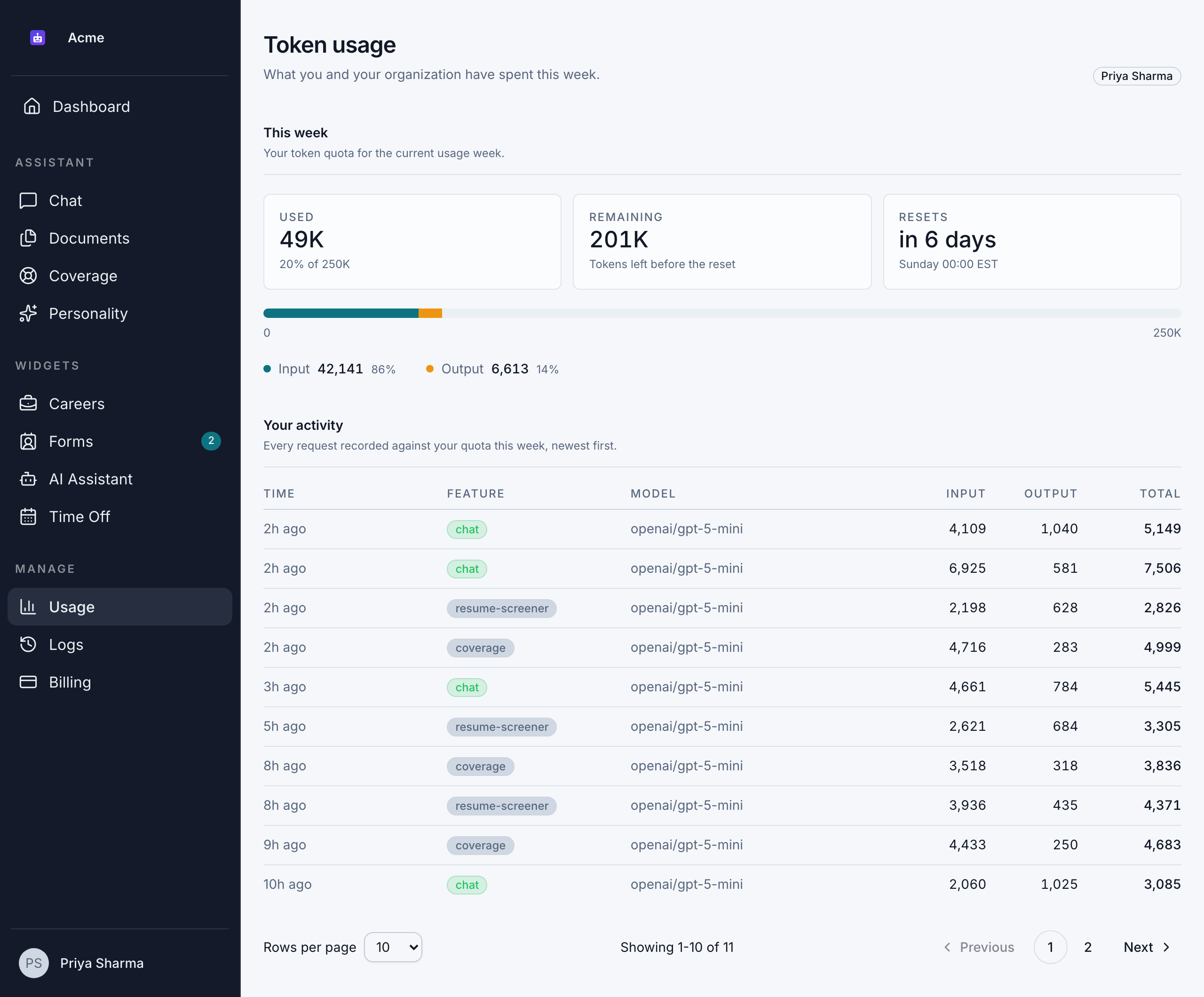
Go to Manage > Usage. The Token usage page shows your own usage for the current usage week.
This week has 3 tiles:
- Used: tokens you've used, and the percentage of your limit.
- Remaining: tokens left before the reset, or Unlimited.
- Resets: when your usage week resets. It resets every Sunday at 00:00 EST.
A bar shows how much of your limit you've used, split into Input (what you sent to the AI) and Output (what it wrote back).
Your activity lists every request this week, newest first, with:
- Time
- Feature: which part of Bizbot used the tokens, such as
chatfor Chat orcoveragefor the coverage agent and interviews - Model
- Input, Output and Total tokens
Your organization's usage
Members with Manage Token Usage also see a section marked Admin only below their own usage. They also see Organization tokens under Trends on the Dashboard.
Member usage lists every member's usage this week, with their Input, Output and Total tokens, number of Requests, and weekly Limit. A bar under the limit shows how close each member is to it. Click a column heading to sort. The Organization total row adds everyone up.
Set a member's token limit
Each member's weekly limit comes from your plan. You can set a different one for a member:
- In Member usage, click Manage next to the member.
- Under Weekly limit override, enter the new weekly limit. It can be higher or lower than the plan default.
- Click Save. You see "Weekly limit updated for …".
The override stays in place every week until you remove it. To go back to the plan default, open Manage and click Reset to plan default.
You can also set a member's limit with a member preset. See Member presets.
Give a member a top-up
A top-up gives a member extra tokens for the current week only. It's useful when someone runs out before the week resets.
- In Member usage, click Manage next to the member.
- Under Grant one-time top-up, enter the number of Bonus tokens.
- Optionally, add a Reason (optional).
- Click Grant. You see "Granted a top-up to …".
The top-up is added to the member's limit straight away. When the week resets, it's gone and they go back to their normal limit. The dialog shows any top-ups already granted this week.
| Weekly limit override | One-time top-up | |
|---|---|---|
| How long it lasts | Every week, until you reset it | The current week only |
| What it does | Replaces the plan default | Adds extra tokens on top of the limit |
Overrides and top-ups are recorded in the action log. See Action log.
When a member reaches their limit
When a member has used all their tokens for the week, Bizbot stops their AI requests until the week resets or they get a top-up:
- In Chat, they see "An error occurred, please try again later."
- In other features, such as coverage and AI follow-ups, they see "Weekly token limit reached".
If a member tells you the assistant has stopped answering, check their usage in Member usage and give them a top-up if needed.