Ask the assistant a question
This page shows you how to ask the assistant a question in Chat, and how to manage your conversations.
Any member. The assistant only answers from the knowledge base if you have the View Documents permission. Attaching a file needs Modify Documents.
Ask a question
- Go to Assistant > Chat. A new conversation shows Start a new conversation.
- Type your question in Message the assistant....
- Press Enter to send it. Press Shift+Enter to add a new line without sending.
While the assistant works, you see what it's doing, for example Thinking... or Using Get Information when it searches your documents. The answer then appears in the conversation.
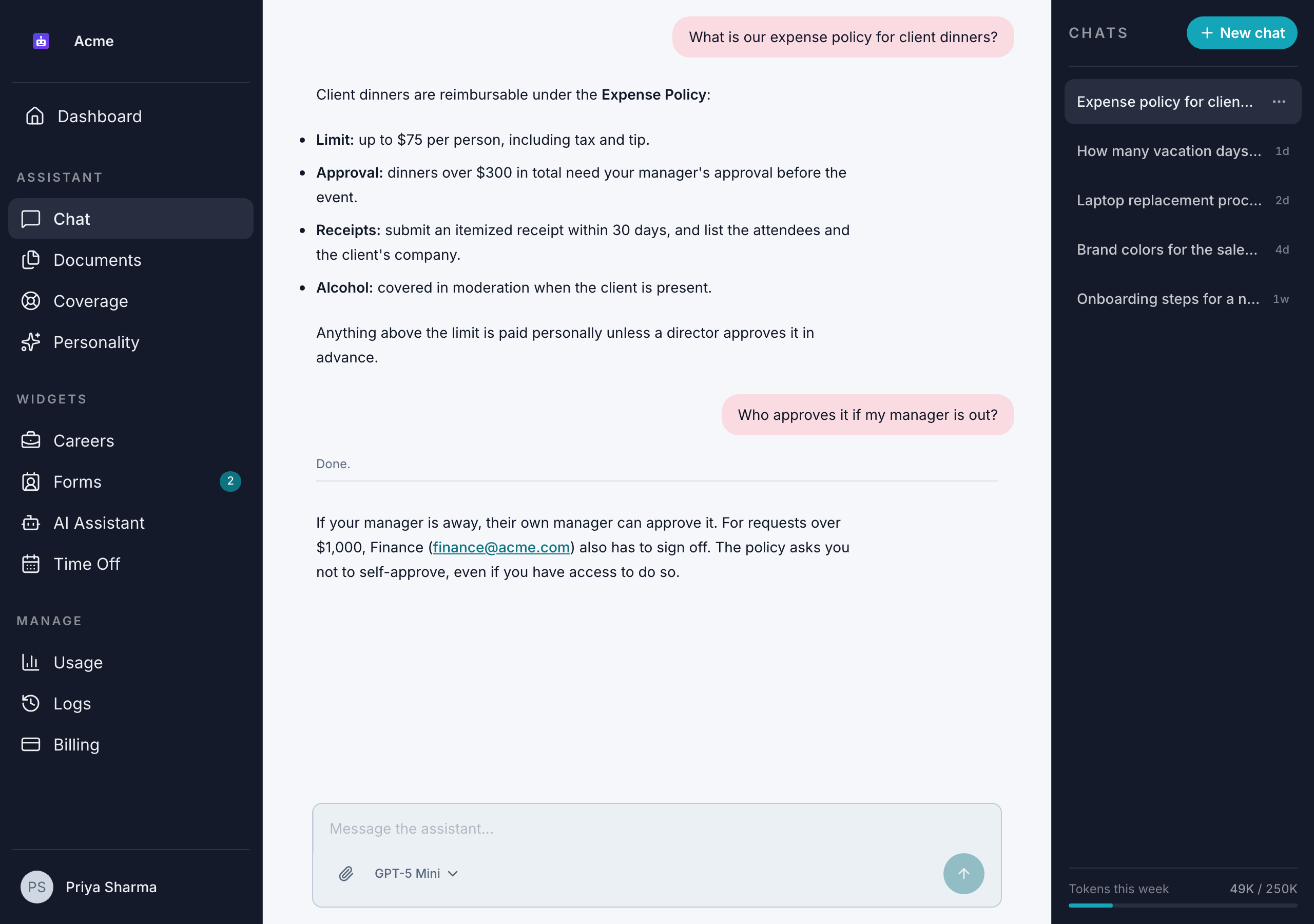
The assistant answers from your organization's documents, notes it has saved for you and your conversation. It turns down general questions that aren't about your work, such as trivia or homework. See Chat with your knowledge base.
Chat is a full page. There's no chat panel or bubble on other pages.
Choose a model
Click the model menu under the message box and choose a model under Cloud:
| Model | Described in the app as |
|---|---|
| GPT-5 Mini (default) | Fast · 128K context |
| GPT-5.4 | Powerful · 128K context |
| Gemini 3 Flash | Fast · 1M context |
| Claude Sonnet 4.6 | Balanced · 200K context |
GPT-5.4 and Claude Sonnet 4.6 are included in the Business and Enterprise plans. On the Free plan they're listed with a lock and a Business badge, and you can't choose them. See AI models.
Your choice applies to the messages you send next, and Bizbot remembers it in this browser. If the model you chose is no longer available, for example after your organization moves to the Free plan, Chat goes back to GPT-5 Mini. See Improve AI answers for when to use which.
Attach a file
- Click the paperclip button (Attach a file) under the message box.
- Choose a file. You can attach the same file types as the knowledge base. See Supported file types.
- Wait for "File uploaded and queued for indexing."
An attached file isn't private to your conversation. It's added to your organization's knowledge base, shared with all of your roles. Other members with those roles can then get answers from it, and it appears in Assistant > Documents. To choose exactly who can use a file, upload it in Assistant > Documents instead. See Upload documents.
Manage your conversations
Your conversations are listed in the Chats panel next to the chat, most recently used first. Each one gets a short title from your first message. On a phone, open the panel with the chat history button at the top of the screen.
- Start a new conversation: click New chat.
- Go back to a conversation: click its title.
- Rename a conversation: open its menu, click Edit, type a new title and press Enter.
- Delete a conversation: open its menu, click Delete and confirm. This permanently deletes the conversation and all its messages, and can't be undone.
Your conversations are private. Other members, including admins, can't see them.
In a long conversation, the assistant keeps the most recent messages and a short summary of older ones. If an early detail matters, repeat it, or start a new conversation for a new topic.
Your weekly token limit
Every message uses tokens. The Chats panel shows your Tokens this week against your weekly limit.
When you reach your limit, the assistant doesn't answer. The chat shows "An error occurred, please try again later." Your limit resets on Sunday at 00:00 EST, or a member with the Manage Token Usage permission can give you a top-up. The same message appears if you send more than 20 messages in a minute. Wait a minute and try again. See Usage and limits.