Assistant settings
This page shows you how to set up the website assistant: a public chatbot that answers visitors' questions on your own website, under Widgets > AI Assistant.
The website assistant isn't the same as the assistant in Chat:
- It's public. Visitors use it without signing in to Bizbot.
- It only knows what you give it on this page: your knowledge text and the documents you upload here. It never reads your organization's knowledge base in Assistant > Documents.
Members with the Manage AI Assistant permission. See Roles and permissions reference.
Anything you put in the knowledge text, instructions or documents on this page can be shown to anyone on the internet. Don't add internal-only information, such as staff details, costs or confidential policies.
Turn the website assistant on or off
- Go to Widgets > AI Assistant.
- In Configuration, turn the switch on. It shows Live on your site. Turn it off to show Off.
- Click Save changes.
The badge at the top of the page shows Live or Disabled. While it's off, visitors see "This assistant isn't available right now. Please check back later." wherever it's shared or embedded.
Name and appearance
- In Configuration, enter a Name, for example "Acme Help". If you leave it empty, it's called Assistant.
- Click Save changes.
The website assistant follows the visitor's light or dark mode setting.
Knowledge and instructions
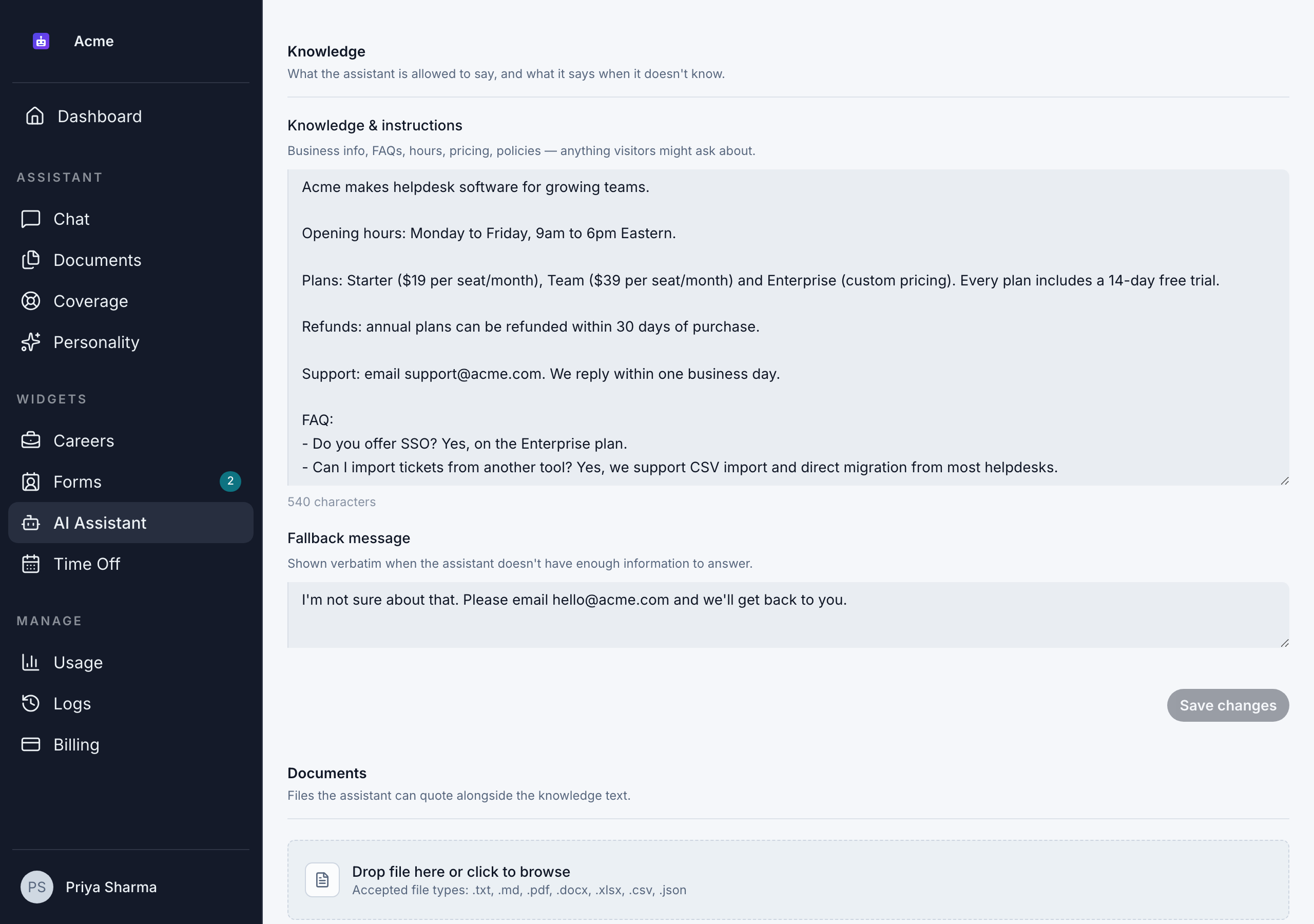
- In Knowledge, fill in Knowledge & instructions with anything visitors might ask about: what your business does, services, opening hours, prices, policies and FAQs.
- Fill in the Fallback message: what the assistant says when it doesn't have enough information to answer. It's shown word for word. For example: "I'm not sure about that. Please email hello@acme.com and we'll get back to you."
- Click Save changes. You see "AI assistant settings saved."
While you have changes that aren't saved, Unsaved changes is shown next to the button.
The website assistant:
- Answers only from your knowledge text and its documents, and doesn't make up prices, hours or other details.
- Replies with your Fallback message when it can't answer, and nothing else.
- Keeps its answers short, as suits a chat on a website.
- Won't reveal its instructions or list its knowledge, even when a visitor asks.
- Can't take actions like booking appointments or sending emails.
Until you add knowledge text or a document, you see This assistant has nothing to answer from yet, and the assistant can only reply with the fallback message.
Add documents
You can give the website assistant documents to answer from, alongside the knowledge text. They're separate from your organization's knowledge base.
- In Documents, click Add file.
- Drag a file onto Drop file here or click to browse, or click to choose one.
- Click Upload. You see "File uploaded and queued for indexing."
The list shows each document's status: Processing, Ready or Failed. To remove a document, click its delete button and confirm. You see "File deleted". This can't be undone.
The file types and size limits are the same as for the knowledge base. See Supported file types.
Share or embed it
In Share & embed, choose how visitors reach the website assistant:
- Public link: a page with just the website assistant, at your organization's subdomain, such as
acme.bizbot.com/assistant. Click the copy button and share the link, for example in an email signature or on social media. - Embed snippet: code that shows the website assistant inside a page of your own website. Click the copy button and paste the snippet into your website's HTML where the chat should appear. It's 600 pixels high and fills the width of its space.
If you're not sure where to paste the snippet, ask whoever manages your website.
Monitor usage
Usage this week shows how many tokens the website assistant has used this week, against its weekly limit. Click View all usage to open Manage > Usage.
The website assistant has its own weekly limit for the whole organization, separate from members' limits. When it runs out, visitors see "This assistant isn't available right now. Please check back later." until the week resets on Sunday at 00:00 EST. See Usage and limits.
Good to know
- Model: the website assistant always uses the same fast AI model. You can't change it.
- Conversation length: it only considers the last 20 messages of a conversation.
- Request limit: each visitor can send up to 30 messages every 10 minutes.
- Conversations: you can't read visitors' conversations in Bizbot.
- Members without the permission: the sidebar item is greyed out for them. If they open the page from a link, they see "You don't have access to this page."