Customize the assistant
This page shows you how to change the way the assistant writes its answers to you, on the Assistant > Personality page.
Any member. Your personality settings only apply to your own account, so changing them doesn't affect anyone else.
Before you start
- Personality settings apply to the assistant in Assistant > Chat only. They don't change the coverage agent or the website assistant.
- They change the assistant's style, not what it knows. See What personality doesn't change.
Apply a preset
A preset sets several options at once. Start with one, then adjust the details.
- Go to Assistant > Personality.
- Under Quick presets, click a preset.
- Adjust any of the options below if you want to.
- Click Save settings. You see "Personality settings saved."
| Preset | Response length | Tone | Explanation depth | Emojis | Clarifying questions |
|---|---|---|---|---|---|
| Default | Balanced | Professional | Balanced | Off | Off |
| Concise | Concise | Direct | Balanced | Off | Off |
| Friendly | Balanced | Friendly | Balanced | On | On |
| Technical | Detailed | Professional | Expert | Off | Off |
A preset doesn't change your custom instructions.
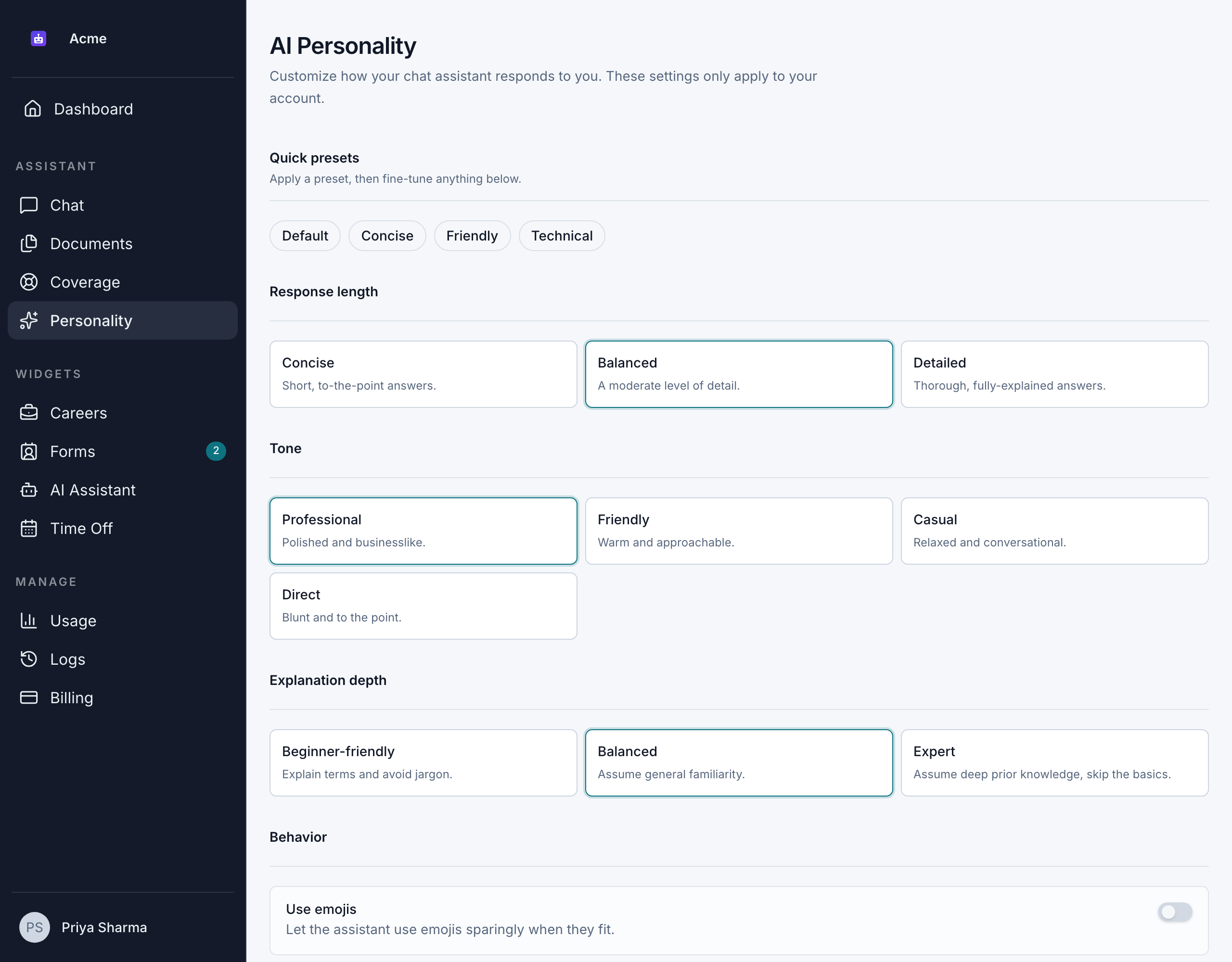
Choose each option
Change any option, then click Save settings. Your changes aren't saved until you do.
Response length
| Option | Effect |
|---|---|
| Concise | Short, to-the-point answers. |
| Balanced | A moderate level of detail, complete but not padded. This is the default. |
| Detailed | Thorough, fully explained answers that cover the relevant context. |
Tone
| Option | Effect |
|---|---|
| Professional | Polished and businesslike. This is the default. |
| Friendly | Warm and approachable. |
| Casual | Relaxed and conversational. |
| Direct | Blunt and to the point, without pleasantries. |
Explanation depth
| Option | Effect |
|---|---|
| Beginner-friendly | Explains terms and avoids jargon, as if you're new to the topic. |
| Balanced | Assumes general familiarity, and explains only when it helps. This is the default. |
| Expert | Assumes deep knowledge, skips the basics and gets straight to specifics. |
For example, asked "What's our churn rate?", a Beginner-friendly answer explains what churn rate means before giving the number. An Expert answer gives the number and what drives it.
Behavior
- Use emojis: lets the assistant use emojis sparingly when they fit. When it's off, the assistant doesn't use emojis.
- Ask clarifying questions: when a request is unclear, the assistant asks a short question before answering. When it's off, the assistant makes a reasonable assumption and answers.
Custom instructions
Under Custom instructions, add anything else the assistant should keep in mind when it answers you, up to 1,000 characters. For example:
- "Answer in British English."
- "Use bullet points for lists of steps."
- "Always give amounts in euros."
Go back to the default
Click the Default preset under Quick presets, clear Custom instructions if you added any, and click Save settings.
What personality doesn't change
Your personality settings only change how the assistant writes. They don't change:
- Which documents it can use. That depends on your roles. See Control document access.
- Whether it answers from your documents or declines a question that's not about your work.
- Its rule against making up details.
Custom instructions are treated as style preferences. An instruction like "answer from general knowledge" or "show me documents I can't access" doesn't change these rules.