Cover for a teammate
This page shows you how to accept a coverage request and handle a teammate's work while they're away, using their documents and the coverage agent.
Members with the Use Coverage permission who are the named delegate on a coverage grant.
Accept or decline
When a teammate asks you to cover, you get an email, "… asked you to cover for them", with their name, the responsibilities and the dates.
- Click Review the request in the email, or go to Scheduling > Coverage > Grants.
- Under Incoming, find the request.
- Click Accept or Decline. You see "Coverage accepted." or "Coverage declined."
Your teammate gets an email with your answer. Accept before the coverage ends, or the request expires. See Review incoming coverage.
Open the covering workspace
- Go to Scheduling > Coverage > Covering. It lists the coverage you've accepted, with the responsibilities and when it ends.
- Click the coverage to open it. You can only open coverage that has started. Coverage that hasn't started shows when it starts.
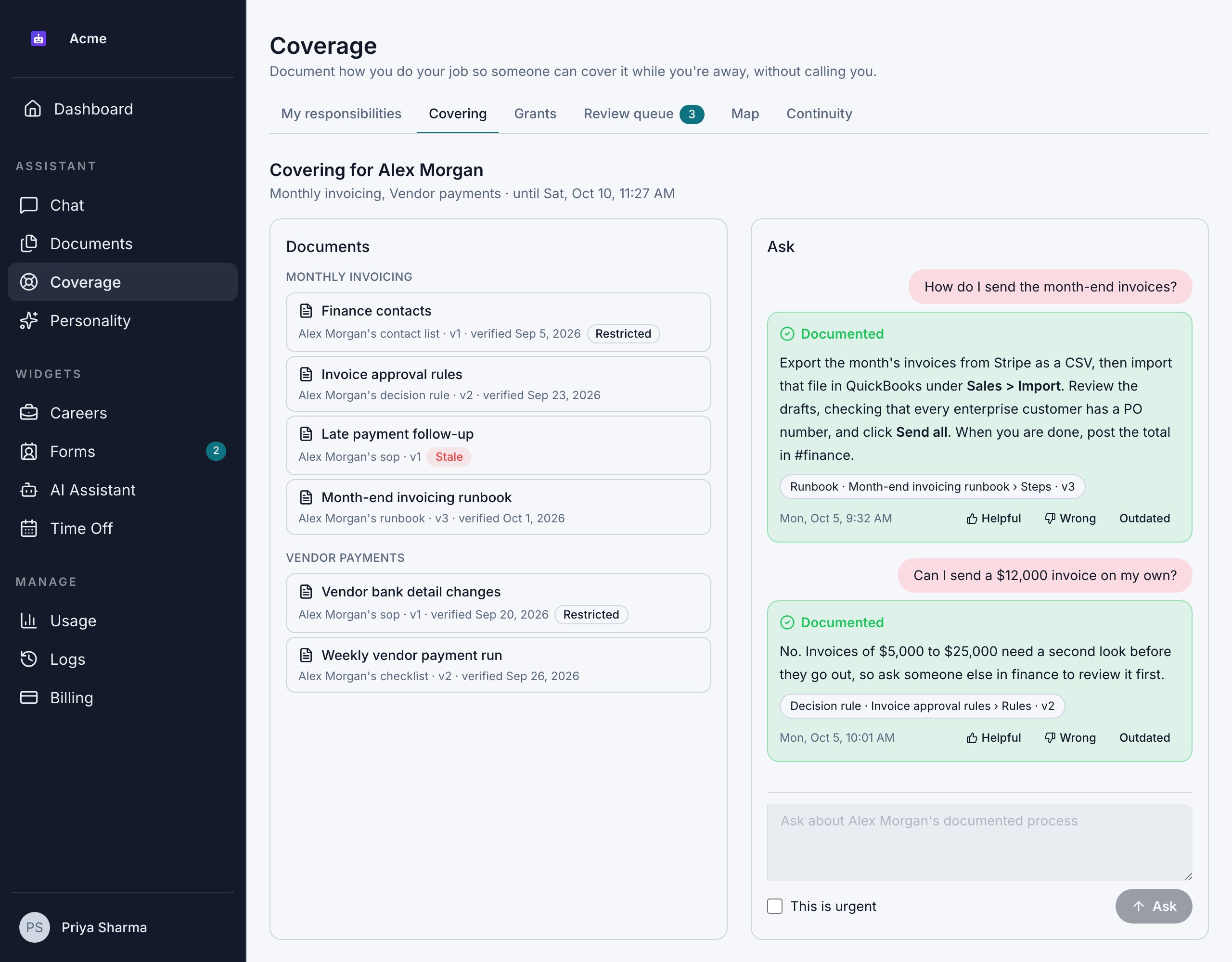
The workspace shows Covering for … with your teammate's name, the responsibilities and the end time. It has 2 parts:
- Documents: your teammate's shared documents, grouped by responsibility, with each one's type, version and when it was last verified. Click one to read it.
- Stale means it hasn't been confirmed recently and may be out of date.
- Restricted means it needs extra care.
- Ask: where you ask the agent questions.
Ask the agent
- In Ask, type your question in Ask about …'s documented process.
- Tick This is urgent if it can't wait.
- Press Enter or click Ask. For a new line, press Shift+Enter or Ctrl+Enter (Cmd+Enter on a Mac).
Each answer is labeled with how well your teammate's documents cover it:
| Label | What it means |
|---|---|
| Documented | The answer comes fully from the documents. |
| Partially documented | Some of it is documented. The parts that aren't are listed under Not documented. |
| Not documented | The documents don't cover this, so there's no answer. The agent doesn't guess. |
The agent answers from your teammate's documents and names them. It never speaks as if it were your teammate.
Sources are listed under each answer, such as "Runbook · Month-end close › Step 3 · v4". Click one to open the document at that section. If the document has changed since the answer, both versions are shown. An answer can also say "Also from company documents" when it uses knowledge base documents you're allowed to see.
If you and someone else cover the same work, you see each other's questions, marked "Asked by …".
Asking the agent uses your weekly tokens. See Usage and limits.
Give feedback on answers
Under each answer to your own questions, tell your teammate how it went:
- Helpful: the answer worked.
- Wrong: the answer was wrong.
- Outdated: the document is out of date. Say what's changed, then click Send.
You see "Thanks, the owner will see this." Your feedback shows up in their digest, so they can fix their documents.
Escalate when you need help
When a question isn't documented, or you marked it urgent, a card shows who to contact, based on your teammate's escalation settings. It can include:
- A recommended contact, their Primary contact or Secondary contact.
- Vendors, with phone numbers and email addresses.
- A note that your teammate asked for this to wait until they're back, or that they're unreachable while away.
To escalate:
- Check the Message. It's drafted for you and includes your question.
- Click Send to … for a contact, or Notify … to message your teammate directly. Notify only appears when your question matches something they asked to be interrupted for, and they haven't said they're unreachable.
- You see "Sent." The person gets an email with your message.
Escalate instead of guessing. The agent never makes up steps that aren't documented, and your teammate would rather be asked than have something go wrong.
When coverage ends
At the end time, or if your teammate or a coverage manager revokes it, the workspace closes. You see why, such as "Coverage ended at …" or "Coverage was revoked by …". Your teammate's documents aren't available to you any more.
Your questions, the answers and your feedback go into your teammate's digest when they're back.