Grant coverage
This page shows you how to create a coverage grant, so that a teammate can cover your responsibilities while you're away.
Members with the Use Coverage permission, for responsibilities they own. The delegate also needs Use Coverage.
Before you start
- Document the responsibilities you'll hand over. A grant only shares published documents filed under those responsibilities, so a responsibility with no documents gives your delegate nothing to read. See Capture knowledge with interviews.
- Check your escalation settings. They tell your delegate who to contact when something isn't documented. See Set your escalation settings.
Set up coverage
- Go to Scheduling > Coverage > Grants.
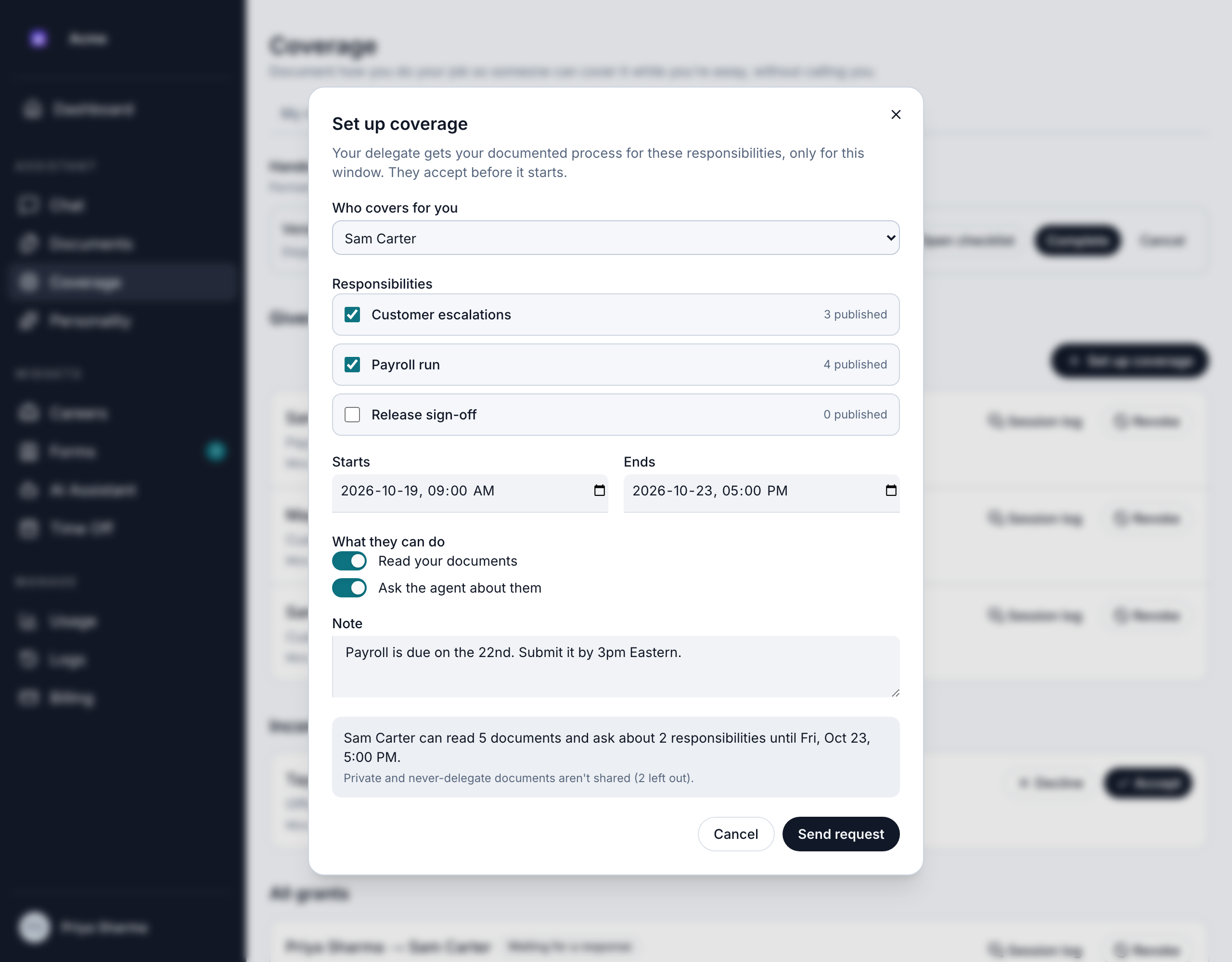
- Click Set up coverage.
- In Who covers for you, choose a member. Members without the Use Coverage permission are listed but can't be chosen.
- Under Responsibilities, tick the ones they'll cover. If one has nothing shareable yet, you see "Nothing here can be shared yet: publish a delegable document first."
- Choose when coverage Starts and Ends. A grant can last up to 180 days.
- Under What they can do, choose:
- Read your documents: they can open your documents.
- Ask the agent about them: they can ask the agent questions about your documents.
- Optionally, add a Note for your delegate, such as "Invoices are due on the 28th."
- Check the summary, for example "Sam can read 6 documents and ask about 2 responsibilities until …". It also says how many private and never-delegate documents are left out.
- Click Send request. You see "Coverage request sent to …", with your delegate's name.
Start coverage from a time-off request
If you've requested time off, you can link coverage to it:
- Right after you submit your request, click Set up coverage in the confirmation. Or open the request later from Scheduling > Time Off.
- Under While I'm away, choose Unreachable: don't contact me, Emergencies only or Reachable if needed.
- Click Set up coverage. The dates are filled in from your time off.
- Complete the steps above.
Coverage linked to time off ends automatically if the request is denied or cancelled, and you and your delegate both get an email. See Request time off.
If you choose Unreachable, your delegate is never told to contact you. Their questions go to your secondary contact, or they're told to wait.
Set your escalation settings
Each responsibility has its own escalation settings. They decide what the agent tells your delegate when your documents don't have the answer or the question is urgent.
- On My responsibilities, open the responsibility's actions menu and click Edit.
- Under Escalation, set:
- Primary contact and Secondary contact: members your delegate can message.
- When something isn't documented: Send it to my primary contact, Send it to my secondary contact or Tell them to wait until I'm back.
- Interrupt me if… (one per line): situations where your delegate may contact you directly, such as "production is down for more than 30 minutes".
- Never interrupt me for… (one per line): situations that should never reach you, such as "routine password resets". These always win over "interrupt me if".
- Vendor contacts: outside suppliers to call, with their name, what they're for, phone and email.
- Click Save.
What your delegate receives
Your delegate gets an email, "… asked you to cover for them", with your name. It lists the responsibilities, the dates and your note. The Review the request button opens Scheduling > Coverage > Grants, where they accept or decline.
You get an email when they answer. If they decline, choose someone else.
Grant states
Every grant shows its state on the Grants tab.
| State | What it means |
|---|---|
| Waiting for a response | Your delegate hasn't accepted or declined yet. |
| Starts … | Accepted, and the start time hasn't come yet. |
| Active until … | Accepted and running. Your delegate can use your documents now. |
| Ended | The end time has passed, and your delegate's access has stopped. |
| Expired without a response | Nobody answered before the end time, so the grant never started. |
| Declined | Your delegate said no. |
| Revoked | You or a coverage manager ended it early, with the reason if one was given. |
| Revoked because the time-off request was … | The linked time-off request was denied or cancelled. |
Change or revoke coverage
You can't edit a grant after you send it. To change the delegate, dates or responsibilities, revoke it and set up a new one.
- On the Grants tab, under Given, click Revoke on the grant.
- Optionally, give a Reason.
- Click Revoke coverage. You see "Coverage revoked."
Your delegate loses access on their next action, and you both get an email. You can revoke grants that are waiting for a response or accepted.
To see what your delegate asked, click Session log on the grant. It lists every question, how well it was documented, and which documents the answer came from.
Good to know
- Unanswered requests expire. A request nobody answers before its end time never starts, and the delegate can no longer accept it.
- Updates reach your delegate straight away. If you publish a new version during coverage, your delegate sees it at once. Past answers keep a record of the version they came from.
- You get a digest afterwards. When coverage ends, you get a digest of what happened. See Digests and summaries.