Capture knowledge with interviews
This page shows you how to write down how you do your work, so that someone can cover for you. You can let an AI interviewer draft documents from your answers, start from a template, or write documents yourself.
Members with the Use Coverage permission, for their own responsibilities.
Add your responsibilities
A responsibility is an area of work you own, such as "Production server maintenance" or "Month-end close". It's what someone covers for you, so add one for each area someone would need to pick up.
- Go to Scheduling > Coverage. The My responsibilities tab opens.
- Click New responsibility.
- Enter a Name and, optionally, a Description.
- Choose the Criticality: Low, Medium, High or Critical. More critical work needs more documentation to be ready for coverage. See Readiness.
- Under Systems, type each tool or system it involves, such as "Xero", and press Enter.
- Optionally, fill in Escalation. See Set your escalation settings.
- Click Create. You see "Responsibility created."
To change a responsibility, open its actions menu and click Edit. To delete it, click Delete. Its documents stay, but become unfiled. You can't delete a responsibility while someone is covering it.
Start from a template
Templates give you a ready-made responsibility and document outlines with questions to answer, so you don't start from a blank page.
- Click Start from a template.
- Choose a Pack, such as Servers and infrastructure.
- Tick the Documents you want.
- Under File under, choose one of your responsibilities, or leave it to create the pack's new responsibility.
- Click Add drafts. You see "Drafts added to your review queue."
Open each draft, answer the questions in italics in your own words, then publish it.
Run a handoff interview
A handoff interview is a short conversation with an AI interviewer. It asks how you do your work and drafts documents from your answers.
- On My responsibilities, click Start handoff interview. You can also start one from a time-off request, with the handoff interview button in its coverage section.
- Answer each question in Your answer and click Send.
- When you've covered enough, click Finalize. The interviewer drafts documents from what you said, and you go to your review queue.
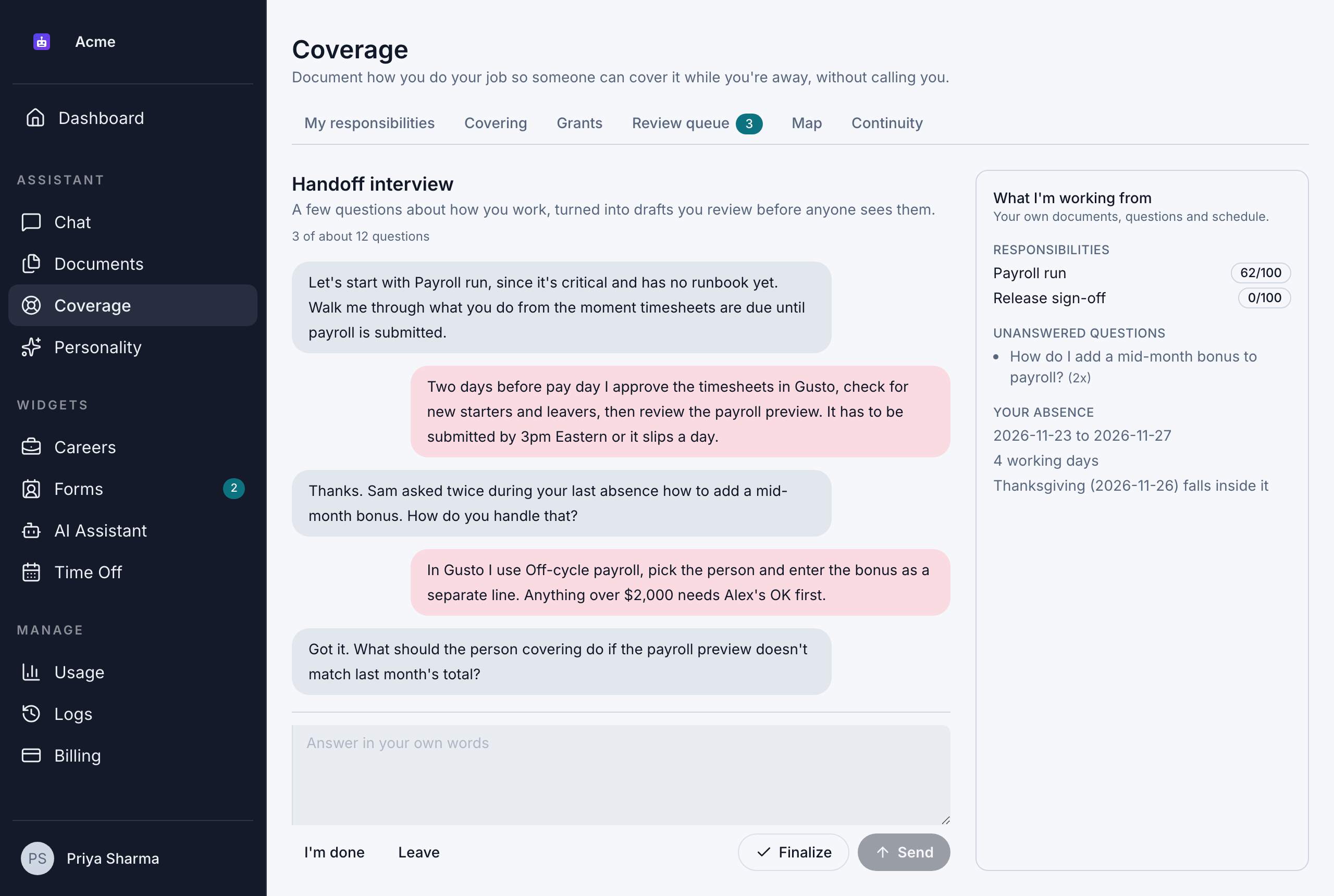
How the interview works:
- It asks one question at a time, about 12 in total. The count is shown at the top, for example "4 of about 12 questions".
- It starts with your least-ready responsibility. It asks about what's missing first.
- It uses what Bizbot already knows. The What I'm working from panel shows what the interviewer is using: your responsibilities, unanswered questions from delegates, your absence dates and notes you saved.
- It drafts only what you tell it. Anything you didn't cover appears in the draft as a line starting "Not covered in interview:", so the gap is visible. It never makes up steps, thresholds or contacts.
To stop:
- Click I'm done to tell the interviewer you've finished. Then click Finalize to get your drafts.
- Click Leave to close the interview without drafting anything.
If you paste something that looks like a password or key, Bizbot leaves it out of the notes. You see "That looked like a credential, so it was left out of the notes." Tell the interviewer where the credential is kept instead.
Interviews use your weekly tokens.
Answer as if you were explaining to a new colleague. Give the exact steps, the order you do them in and the names of the people and tools involved. Say what usually goes wrong and how you fix it. "I check the backup log in the admin panel every morning, and if it shows a failure I rerun the job and email Priya" is far more useful than "I check the backups".
Write or edit a process document yourself
- On My responsibilities, click New document on a responsibility. Or open an existing document from the list under it.
- Enter a Title, and choose the Type:
- Runbook: step-by-step instructions for a recurring task.
- SOP: a standard procedure everyone should follow the same way.
- Checklist: items to tick off, in any order.
- Decision rule: how to decide when a situation comes up.
- Contact list: who to call, and for what.
- Context note: background someone needs to do this well.
- Check the Responsibility. Documents set to Unfiled are never shared through coverage.
- Choose the Visibility:
- Private: only you. Never shared through coverage.
- Delegable: shared with whoever covers this responsibility, only while their coverage is active.
- Organization: readable by anyone in the organization who uses coverage, and by your delegates.
- Choose the Sensitivity:
- Normal: no special handling.
- Restricted: shared through coverage, but labeled as restricted.
- Never delegate: never shared through coverage, even when it's filed under a covered responsibility.
- Write the Content. You can use headings, lists and links. Click Preview to see how it looks.
- Click Save draft to keep working later, or Publish to share it. You see "Published version …".
Never paste a password, key or token into a document. Bizbot won't save a document that contains one. Write where the credential is kept instead. See Documents that contain secrets.
Other actions on a document:
- Mark as verified confirms a published document is still correct. It keeps its readiness up.
- Versions shows every published version.
- Archive stops sharing the document straight away. Past versions are kept for earlier coverage answers.
Suggest documents from your saved notes
If you've told the assistant in Chat about your work, it may have saved notes for you. Bizbot can turn them into drafts:
- Open the responsibility's actions menu.
- Click Suggest documents from my saved notes.
You need at least 3 saved notes about the responsibility. Otherwise you see "There aren't enough saved notes about this yet. Save a few more through chat, then try again." Drafts go to your review queue.
Submit for review
Drafts that Bizbot writes for you go to your review queue first: from templates, interviews, saved notes and unanswered questions. Nothing in them is shared until you approve it. See Review queue.
Documents you write yourself don't need review. They're shared as soon as you click Publish.
Knowledge gaps and reminders
Your documentation backlog
When someone covering for you asks something your documents can't answer, the question is added to your Documentation backlog, on My responsibilities. Questions asked most often are at the top. Each one shows how many times it was asked and when.
For each question:
- Draft doc creates a draft document to answer it, and opens it.
- Mark documented links it to a document that already answers it.
- Dismiss removes it from the backlog. You need to give a reason.
Open questions also lower the responsibility's readiness.
Readiness hints
Click a responsibility's readiness score to see what would improve it. For example, "Add a contact list", or "1 document hasn't been verified in 3 months". Use the buttons there to create the missing document types, or to Verify documents that are still correct.
Reminders from managers
A member with Manage Coverage can ask you to document a responsibility from the Continuity dashboard. You get an email, "This work has no backup documentation", saying what would help, with a Document it button. See Continuity planning.