Digests and summaries
This page shows you how to read your digest when you're back, and how to use it to improve your documents.
Members with the Use Coverage permission, for coverage they gave.
When you get a digest
After your coverage ends, Bizbot creates a digest the next time you open it, if anything happened while you were away. Coverage where nobody asked anything doesn't get a digest.
- For time off: all the coverage linked to one time-off request goes into one digest.
- For other coverage: each grant gets its own digest.
You're told in 2 ways:
- An email, with how many questions were asked, how many couldn't be answered, and how many things there are to document, plus a Read the digest button. It may also list questions worth writing down.
- A banner on the Dashboard and on Scheduling > Coverage: "You're back. Here's what happened while … covered for you." Click Read the digest, or dismiss the banner.
The banner disappears once you've opened the digest.
What's in a digest
The digest is titled While you were away. At the top, it shows who covered for you, the dates, and a count of questions, unanswered questions and things to document.
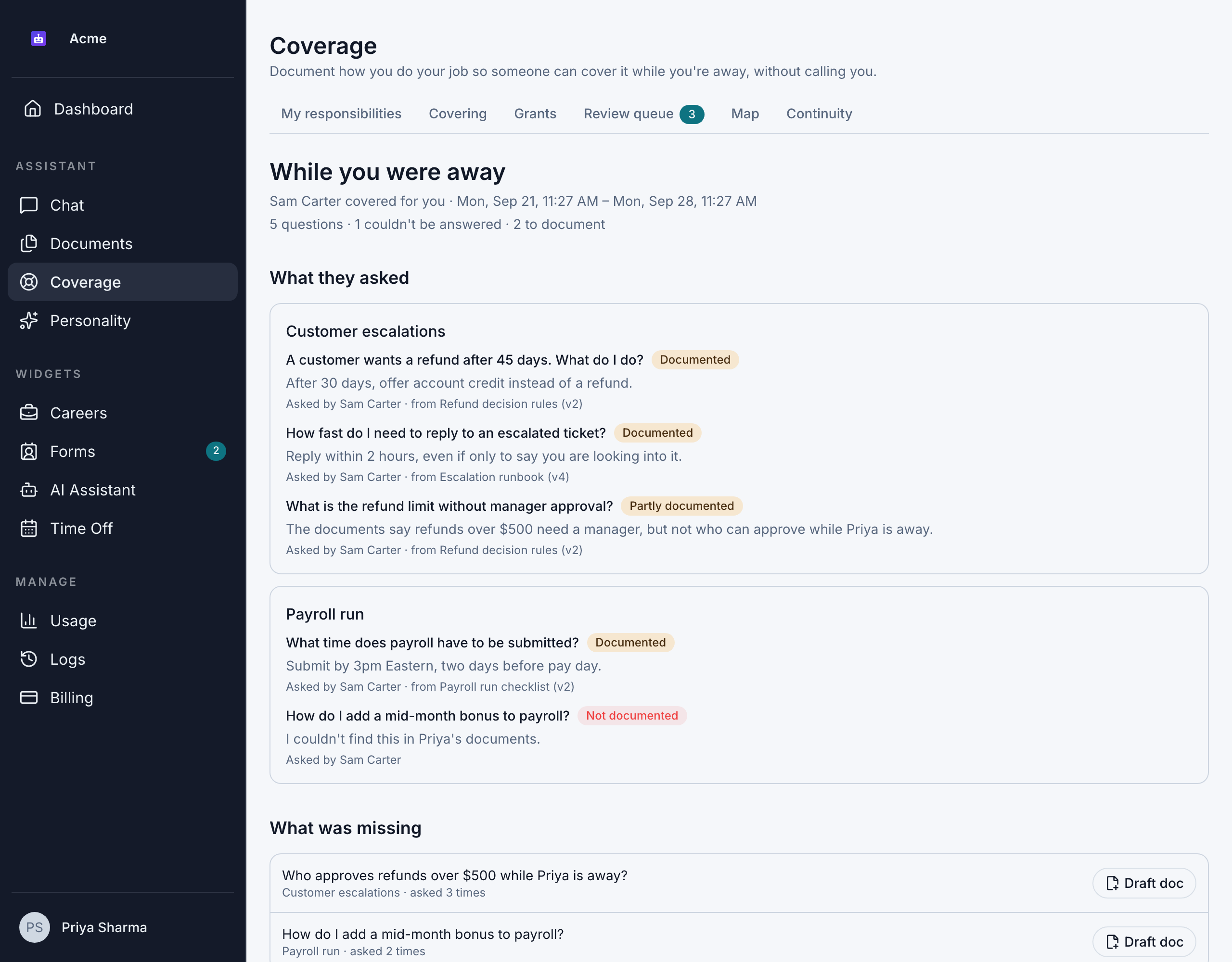
What they asked
Every question your delegates asked, grouped by responsibility. For each question, the digest shows:
- whether it was Documented, Partly documented or Not documented
- a short excerpt of the answer
- who asked
- which documents and versions the answer came from
What was missing
Questions your documents couldn't answer, with how many times each was asked. Click Draft doc on a question to create a draft document for it. These questions are also in your documentation backlog. See Capture knowledge with interviews.
What to fix
- Flagged documents: documents a delegate marked as wrong or out of date, or that were used in answers while they were stale.
- Suggested edits: changes Bizbot suggests to your documents, based on what happened. Each shows the document, the section, why it's suggested, and the new text.
Accept a suggested edit
- Under What to fix, read the suggested text.
- Click Review edit. You see "Staged as an unpublished change. Review it in the review queue."
- In your review queue, the edit appears as a Suggested edit. Change it if needed, then click Approve and publish, or Reject.
Accepting a suggestion doesn't change your document on its own. Nothing is published until you approve it in the review queue. See Review queue.
Find an old digest
Go to Scheduling > Coverage > Digests. Return digests lists every digest you've received, newest first, with the dates, who covered for you and how many questions were asked, couldn't be answered or need documenting. Digests you haven't opened yet are marked New. Click a digest to open it.
The Read the digest button in each digest email opens the same page.
The Session log on each grant, under Scheduling > Coverage > Grants, also keeps every question asked and which documents the answer came from.