Transfer responsibilities
A transfer, called a handover in the app, moves a responsibility to another member for good. It's different from a coverage grant, which is temporary and ends when you're back. See Grant coverage.
The responsibility's owner, or a member with Manage Coverage, can start a handover. Assigning an owner to a responsibility with no owner needs Manage Coverage. Everyone involved needs Use Coverage.
Kinds of handover
| Kind | Use it when | How it works |
|---|---|---|
| I am leaving this work behind | You're leaving, or dropping this work | The successor can read your documents and ask the agent until the handover date, while you're still there to correct things. |
| Someone is taking over my role | Someone is taking over your role | The successor works through a checklist of your documents and confirms they could do each one, before the handover can complete. |
| Assign an owner | A responsibility has no owner | The responsibility moves to the new owner straight away. Only coverage managers can do this, from Continuity. |
Start a handover
- Go to Scheduling > Coverage > My responsibilities.
- Open the responsibility's actions menu and click Hand over.
- Choose the Kind of handover.
- In Who takes it on, choose a member.
- Choose when it should be Done by. It's 2 weeks from now unless you change it.
- Click Start handover. You see "Handover started. They have been emailed."
A responsibility can only be in one handover at a time.
Accept and work through a handover
The person taking over gets an email, "… is handing "…" to …". The handover appears under Handovers on their Scheduling > Coverage > Grants tab, marked "waiting to be accepted".
-
On Grants, under Handovers, click Accept. You see "Handover accepted."
-
Use the time until the due date to learn the work. You can read the documents and ask the agent about them on the Covering tab.
-
For a role transition, click Open checklist. For each document, tick:
- Read
- Asked a question about it
- Confirmed I can do this
Documents marked Must confirm (runbooks, SOPs and decision rules) have to be confirmed before you can finish.
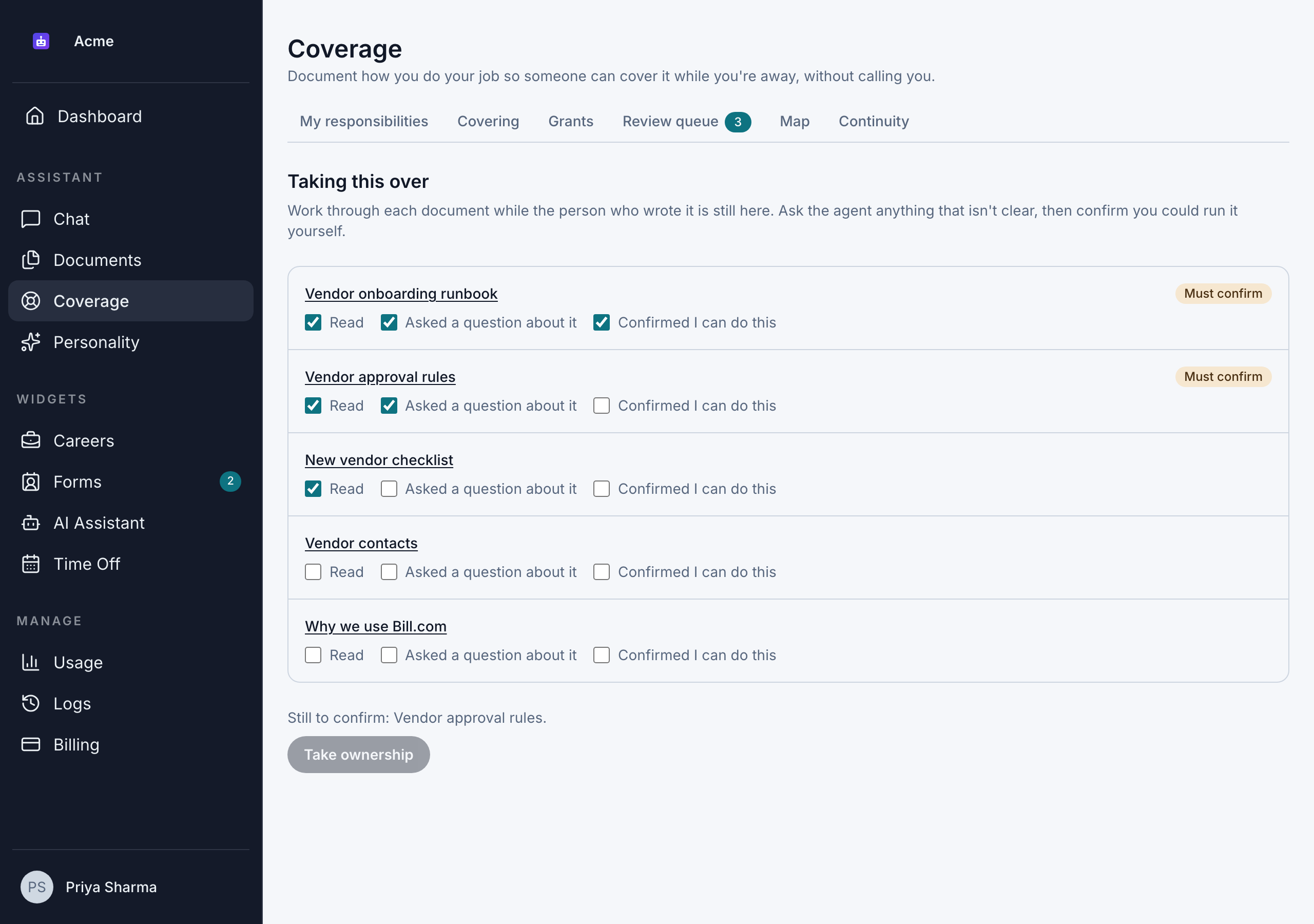
Only the person taking over can tick their checklist.
Complete a handover
The person taking over completes it:
- For a role transition, click Take ownership on the checklist once every Must confirm document is confirmed. Until then, you see "Still to confirm: …".
- For other handovers, click Complete under Handovers.
You see "Handover complete. You own this now." Both people get an email.
The person taking over can only complete on or after the Done by date. A member with Manage Coverage can finish it earlier.
What changes when a handover completes
- Ownership: the new owner owns the responsibility.
- Documents: the new owner gets its shared documents, and open questions from delegates move to their backlog.
- Private documents: these stay with the previous owner, unfiled, if they're still in the organization. If they've left, the private documents are archived.
- Temporary access: the new owner's temporary access from the handover ends, because they now own the work.
Past coverage answers and document versions are kept.
Cancel a handover
Under Handovers, click Cancel. You see "Handover cancelled." Either person, or a member with Manage Coverage, can cancel a handover that hasn't completed.
When someone leaves the organization
When a member leaves, their responsibilities no longer have an owner. They show as No owner on the Map and as Orphaned on the Continuity dashboard.
To avoid this, start an I am leaving this work behind handover for each responsibility before they go. If they've already left, a member with Manage Coverage can click Assign owner on the Continuity dashboard. See Continuity planning.