Coverage graph
The coverage graph (Coverage > Map) shows every responsibility in your organization, who owns it and how they connect. Use it to spot where work depends on one person, so that one absence could take several things out at once.
Members with the Use Coverage permission. Readiness scores are only shown to members with Manage Coverage.
Open the map
Go to Scheduling > Coverage > Map. The page is titled How the work connects.
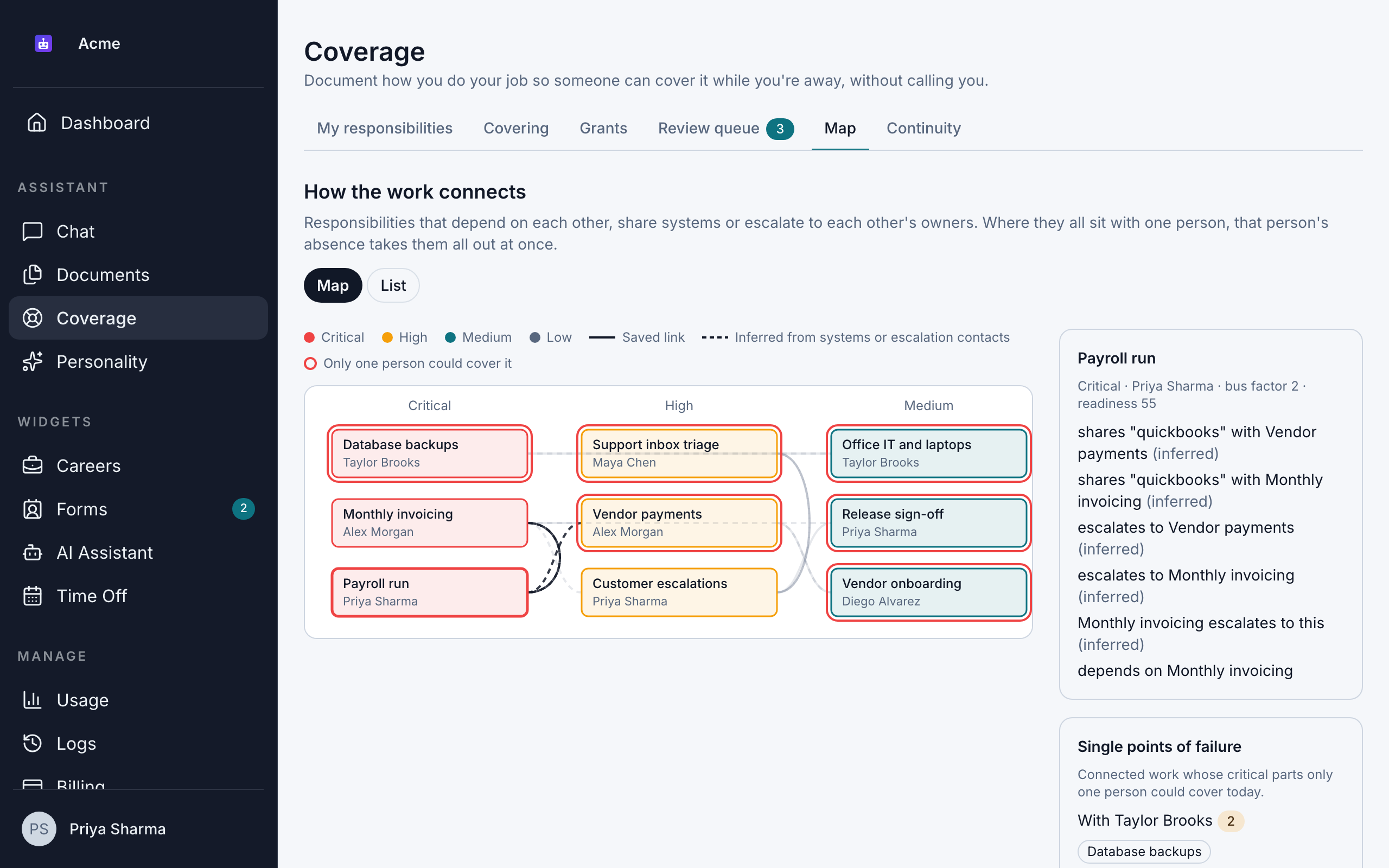
Read the map
- Boxes are responsibilities, each with its name and owner, or No owner.
- Columns group responsibilities by criticality: Critical, High, Medium and Low. Each criticality has its own color.
- A red outline around a box means only one person could cover it today: its bus factor is 1.
- Solid lines are links someone saved.
- Dashed lines are links Bizbot inferred, because 2 responsibilities share a system or one escalates to the other's owner.
The legend above the map explains each of these.
A responsibility's bus factor is the number of people who could cover it today: the owner, plus anyone who covered it under an accepted grant and asked at least one question there in the last year.
Explore the connections
- Select a responsibility. Click a box, or tab to it and press Enter, to highlight its links. The panel on the right lists them, such as "depends on Payroll" or "shares "Xero" with Invoicing". Click it again, or press Escape, to clear the selection.
- Switch to the list. Click List for a table of every responsibility, with its owner, criticality, bus factor and connections. Coverage managers also see a Readiness column.
- Find single points of failure. The Single points of failure panel groups connected work whose critical parts only one person could cover, by person. Click a responsibility there to find it on the map.
Link related responsibilities
Bizbot links responsibilities automatically when they share a system or an escalation contact. To add a link yourself:
- Go to Scheduling > Coverage > My responsibilities.
- Open the responsibility's actions menu and click Links.
- Choose a Relationship: Depends on, Escalates to or Shares a system with.
- Choose the other Responsibility, and optionally add a note.
- Click Add link. It appears on the map as a solid line.
To remove a saved link, click its remove button in Links. You can link your own responsibilities. Coverage managers can link any responsibility.
Add Systems to your responsibilities, such as "Xero" or "AWS". Responsibilities with the same system are linked automatically, which shows where one tool depends on one person.