Review queue
This page shows you how to review the drafts in your review queue, so that nothing Bizbot writes for you is shared before you've checked it.
The owner of the documents, with the Use Coverage permission. Each member reviews their own queue: nobody else approves your drafts, and you can't approve someone else's.
Why documents are reviewed
Bizbot can draft process documents for you: from a template, a handoff interview, your saved notes, or a question a delegate couldn't get answered. A draft may be incomplete or get something wrong, so drafts are never shared automatically. They wait in your review queue until you approve them.
Documents you write yourself in the editor don't go through the queue. You publish them directly.
What's in the queue
Go to Scheduling > Coverage > Review queue. A badge on the tab shows how many items are waiting.
Each item shows its title, its document type and where it came from:
| Source | What it means |
|---|---|
| From a template | A skeleton from a template pack, with questions for you to answer. |
| From your handoff interview | Drafted from your answers in a handoff interview. |
| Drafted from your saved notes or an unanswered question | Drafted from notes you saved, or from a delegate's question your documents couldn't answer. |
| Written by you | A document you started yourself. |
Items marked Suggested edit are changes to a document that's already published, for example an edit you accepted from your digest.
Review a draft
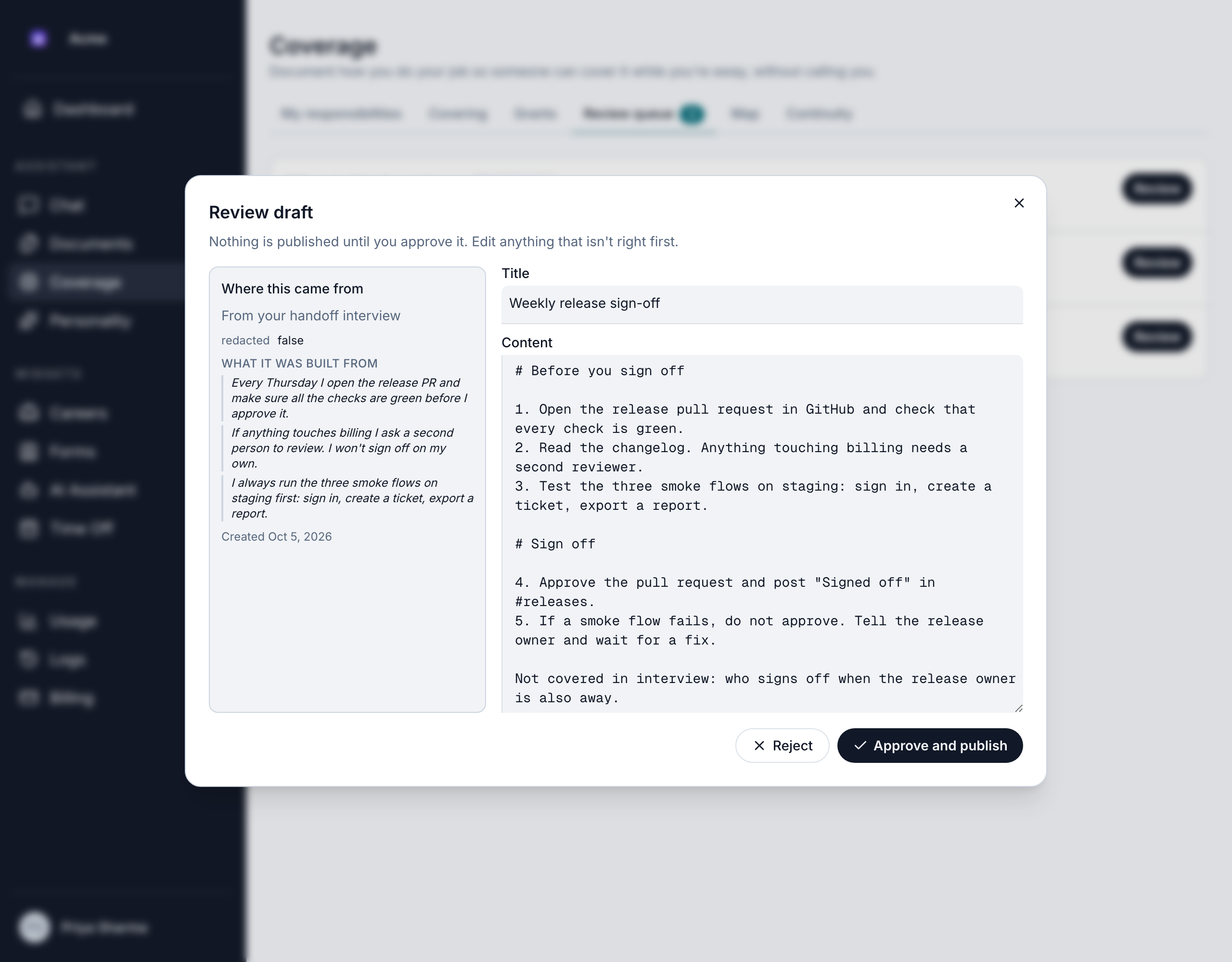
- Click Review on the item. The Review draft dialog opens.
- Check Where this came from. It shows the source and, for interviews, the parts of your answers the draft was built from.
- Read the Title and Content, and edit anything that isn't right. Check that:
- Every step, threshold and contact is correct.
- Lines that start with "Not covered in interview:" are filled in or removed.
- It contains no passwords, keys or other secrets.
- Click Approve and publish, or Reject.
Approve and publish
When you click Approve and publish, Bizbot saves your edits and publishes the document as a new version. You see "Published version …".
Once published, anyone covering the document's responsibility can use it, depending on its visibility and sensitivity. Delegates always see the latest published version.
Reject a draft
- Click Reject.
- In Why are you rejecting this?, give a reason. A reason is required.
- Click Reject draft. You see "Draft rejected."
The draft leaves the queue and is never shared.
Documents that contain secrets
Bizbot checks every document for things that look like credentials when you save, approve or publish it. It looks for:
- private keys
- API keys and access tokens from services such as AWS, GitHub, Stripe, Slack and Google
- database connection strings that include a password
- lines labeled as passwords or secrets
If it finds one, nothing is saved. You see "This document looks like it contains a credential, so it wasn't saved.", with the line number and the kind of secret. The secret itself is never shown.
Remove the secret and write where it's kept instead, for example "Admin password: in the team vault under Backups".
Versions
Every time a document is published, Bizbot keeps that version.
- Delegates only ever see the latest published version. Drafts and unpublished changes are never shared.
- Each answer from the coverage agent records which version it came from.
- To see past versions, open the document and click Versions.