Create a contact form
This page shows you how to create a contact form that visitors can fill in, and that Bizbot scores with AI when it arrives.
Members with the Manage Contact Forms permission. See Manage form access.
Create the form
- Go to Widgets > Forms.
- Click the + tile after your existing forms. Bizbot adds a form called New form.
- On the new form, click the edit button. The Edit form page opens.
The new form isn't ready for visitors yet. It only goes live when you save it for the first time.
Your plan can limit how many active contact forms you have. When you're at the limit, you can't add a form and you see "You've reached your plan's limit of contact forms. Deactivate one or upgrade your plan to add another." See Turn a form on or off.
Set the title and link
- In Title, enter the heading visitors see, such as "Contact us" or "Request a quote".
- In URL, enter the last part of the form's link, such as
request-a-quote. The full link is your organization's subdomain followed by/contact/and this text, for exampleacme.bizbot.com/contact/request-a-quote.
Bizbot turns the URL into lowercase letters, numbers and hyphens. Some words are reserved and can't be used.
Add fields
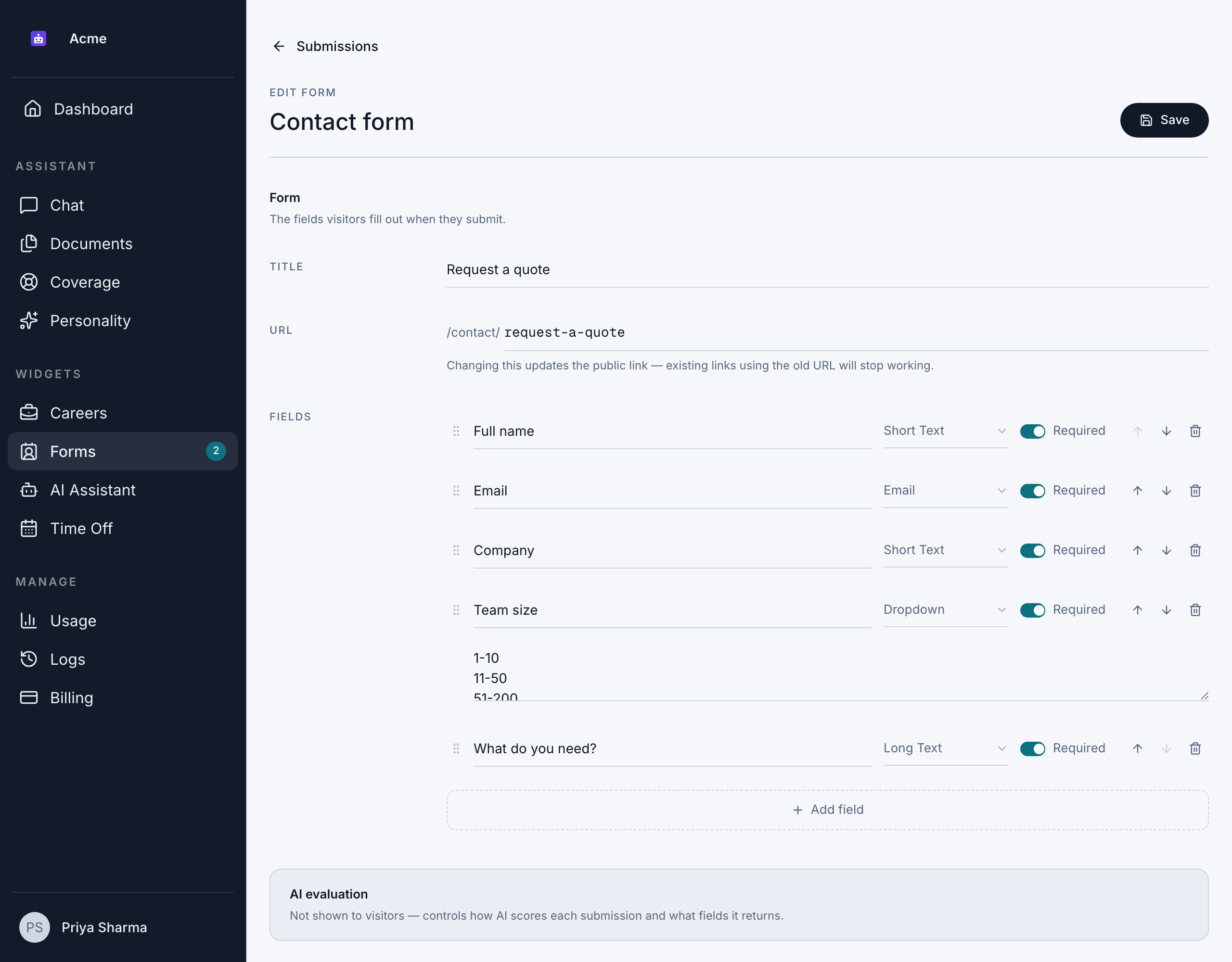
A new form starts with 3 required fields: Name (Short Text), Email and Message (Long Text). Change them or add more:
-
Under Fields, click Add field.
-
Enter the Field name. This is the label visitors see.
-
Choose the field type:
Type What visitors enter Short Text A single line of text Long Text A longer message Number A number Email An email address, checked for a valid format Phone A phone number, checked for a valid format Date A date File An attached file ( .pdf,.docx,.txtor.md, up to 10 MB)Dropdown One choice from a list. Enter the options one per line. Range A number between the Minimum value and Maximum value you set -
Tick or untick Required.
-
Drag fields, or use the up and down arrows, to change their order.
Keep an Email field. Bizbot uses the first email field as the address for follow-up emails.
Set up AI scoring
Every submission is scored by AI when it arrives. You control what the AI looks for in the AI evaluation section, which visitors don't see. AI scoring is included in the Business and Enterprise plans; on the Free plan, submissions arrive without a score. See Plan features.
- In Prompt, describe what makes a strong submission, for example "A strong lead is a business with more than 10 staff who needs a quote this month."
- Under JSON Fields, choose what the AI returns for each submission. A new form includes Score (0 to 100), Reasoning, Recommended action, Missing information and Follow-up message. Score is required and locked, because it sorts submissions into Inbox and Junk (see Inbox and Junk). You can change, remove or reorder the others, and add your own with Add field.
When you save, Bizbot creates a scoring guide from your prompt, fields and results. The AI uses this guide for every new submission, so that submissions are scored the same way. If the guide can't be created, Bizbot saves the form with a basic guide and shows "The AI evaluation guide couldn't be generated, so a basic one is in use. Save again later to retry."
See Edit a form for the options for each field.
Save the form
Click Save. You see "Form saved." The form is now live at its link.
Match your website's style
To make an embedded form match your website, click Generate theme on the Forms page and enter your website's address. Bizbot visits the site, reads its colors, fonts and spacing, and gives you theme settings to copy. Whoever manages your website adds them where the form is embedded. Nothing is saved in Bizbot. See Share a public form.
Emails
- New submission alerts: a new form sends no alerts until you give it a notification email. Set one on the form's Edit form page. See Set the notification email.
- Replies to visitors: Bizbot doesn't send an automatic reply to the visitor. You send follow-ups yourself from the submission, using an AI draft or an email template. See Edit a form.