Review submissions
This page shows you how to work through the submissions your contact forms receive: read them, track them with lead statuses and follow up by email.
Any member. See Manage form access for what needs the Manage Contact Forms permission.
Find new submissions
- In the sidebar, Widgets > Forms shows a badge with the number of unread submissions across all forms.
- On the Forms page, each form shows its own unread count.
Click a form to open its submissions list. Unread submissions are marked with a dot and shown in bold.
The badges only count submissions in buckets that notify you. If a form has Junk turned off, its unread Junk submissions aren't counted, though they still show as unread in the list. See Choose which leads notify you.
Inbox and Junk
Bizbot sorts each submission into a bucket by its AI score, so the leads worth your time come first:
- Inbox: a score of 50 or more, or no score.
- Junk: a score below 50.
The submissions list has 3 tabs: Inbox, Junk and All. It opens on Inbox. Each tab shows how many submissions it holds, and the numbers follow the search and filters you have on. On All, Junk submissions are marked Junk.
- Each submission shows its score, colored by how strong it is: blue for 90 and up, green from 75, yellow from 50 and red below 50. Submissions without a score show No score.
- A dot on the Junk tab means it holds unread submissions that notify you. Check it now and then, so a good lead the AI scored low doesn't wait.
- Submissions can't be moved between buckets by hand. The bucket comes from the score the submission got when it arrived.
When nothing's in Junk, the tab says "Nothing in Junk. Submissions scoring below 50 land here."
Search, filter and sort
At the top of the submissions list:
- Search submissions: find submissions by the text in their answers.
- Status: show only submissions with the lead statuses you tick. Untriaged shows submissions that have no status yet.
- Open Leads: hide submissions with a terminal status, such as Won or Lost.
- Unread only: show only submissions nobody has opened.
- Sort: Newest, Oldest or Least recently contacted.
Search and filters work within the tab you're on. When a filter is on, the list shows how many of the tab's submissions match. Clear filters keeps you on the same tab.
Open a submission
Click a submission to open it. Opening it marks it as read for everyone.
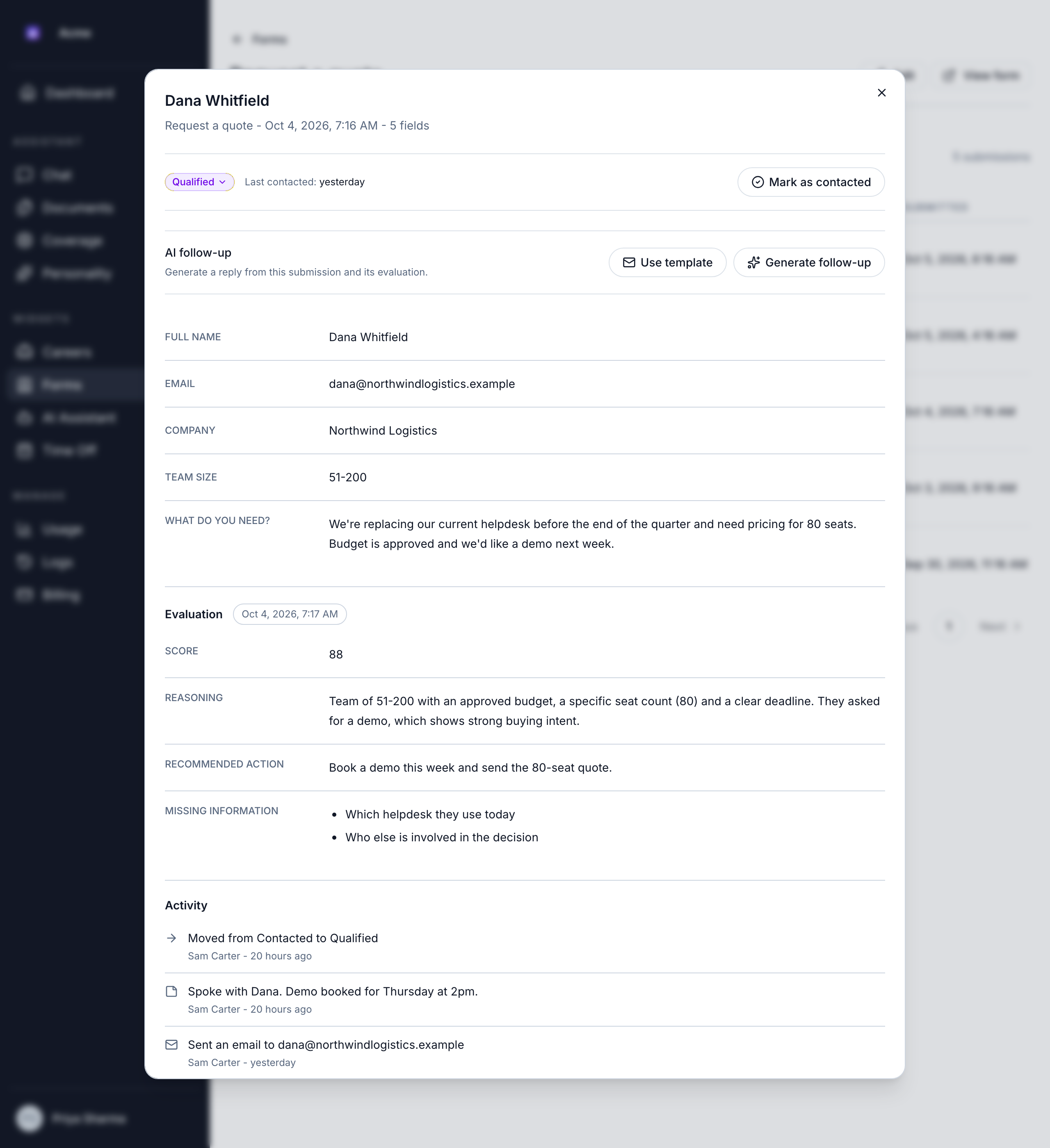
The submission shows:
- The header: the form, the date and time it arrived, a Junk label if it's in Junk, its lead status and Last contacted (or Never).
- The answers: what the visitor entered in each field. For a File field, click the file name to download the attachment. Empty answers show Not provided.
- Evaluation: the AI's results for this submission, as set up in the form's AI evaluation settings, such as Score, Reasoning, Recommended action and Missing information. The evaluation is created once, when the submission arrives.
- The timeline: everything that happened to the submission, such as status changes, emails sent and notes, with who did it and when.
Change the lead status
Choose a status from the status menu, either on the submission or next to it in the list. The change appears in the timeline, for example "Moved from New to Contacted".
New submissions start with your pipeline's default status. To change the statuses, see Edit a form.
Add a note
In the timeline, type in Add note, for example "Called, asked for pricing", and save it. Notes are visible to every member who can see the submission.
Send a follow-up email
-
In the submission, under AI follow-up, do one of these:
- Click Generate follow-up. The AI drafts a reply from the submission and its evaluation. You see "Follow-up draft generated."
- Click Use template and choose an email template. It's filled in with the submission's details.
Both are included in the Business and Enterprise plans. On the Free plan, neither is offered and AI follow-up shows an upgrade note. See Plan features.
-
Check the draft. To is filled in from the form's email field. If the form has no email field, enter the address yourself.
-
Edit the Subject and Body as needed. Always read an AI draft before sending it.
-
Click Send email. You see "Follow-up email sent to …", with the recipient's address.
The email is sent from Bizbot. When the visitor replies, the reply goes to your own email address. Bizbot records the email in the timeline and updates Last contacted. It doesn't change the lead status, so update that yourself.
If you contacted the visitor another way, for example by phone, click Mark as contacted to update Last contacted.
Generating a follow-up uses your weekly tokens. You can send up to 30 emails to leads an hour. See Usage and limits.
Get notified of new submissions
Bizbot emails "New contact form submission for …", with your organization's name, when a submission arrives. The email includes the answers and an Open submission button.
It goes to the form's notification email, if it has one. Each form has its own, and a form without one sends no email. See Set the notification email.
Each form also chooses whether Inbox and Junk submissions send this email. Both do by default. An email about a Junk submission says "Filed under Junk: score below 50." See Choose which leads notify you.