Create or join an organization
This page shows you how to create a new organization or join an existing one, and how to leave one.
Anyone with a Bizbot account.
Before you start
- You need a Bizbot account.
- You can only be in 1 organization at a time. Joining a new organization means leaving your current one.
- The only way to join an existing organization is with an invite from someone in it: an email invite or an invite link. You can't join by searching for an organization or knowing its name.
Create a new organization
You create your organization when you complete your profile after your first sign-in.
- On the Complete your profile screen, enter your First name and Last name.
- Enter your Organization name.
- Click Continue.
Bizbot creates the organization and:
- Makes you its first admin, with every permission.
- Creates an Admin role and a Member role.
- Picks the first available subdomain based on the organization's name, such as
acme.bizbot.com. - Puts the organization on the default plan with 1 seat.
The Dashboard then shows a setup checklist to guide you through the first steps, such as uploading a document and inviting a teammate. See Setup checklist.
Join with an email invite
An email invite is sent to 1 address. It works once and expires after 7 days.
- Open the invite email (its subject is "… invited you to join …" with the inviter's and organization's names) and click Accept invite.
- If you're not signed in, click Log in or Sign up, and use the email address the invite was sent to.
- If your email address isn't verified yet, click Send verification email and follow the link in the email. It brings you back to the invite.
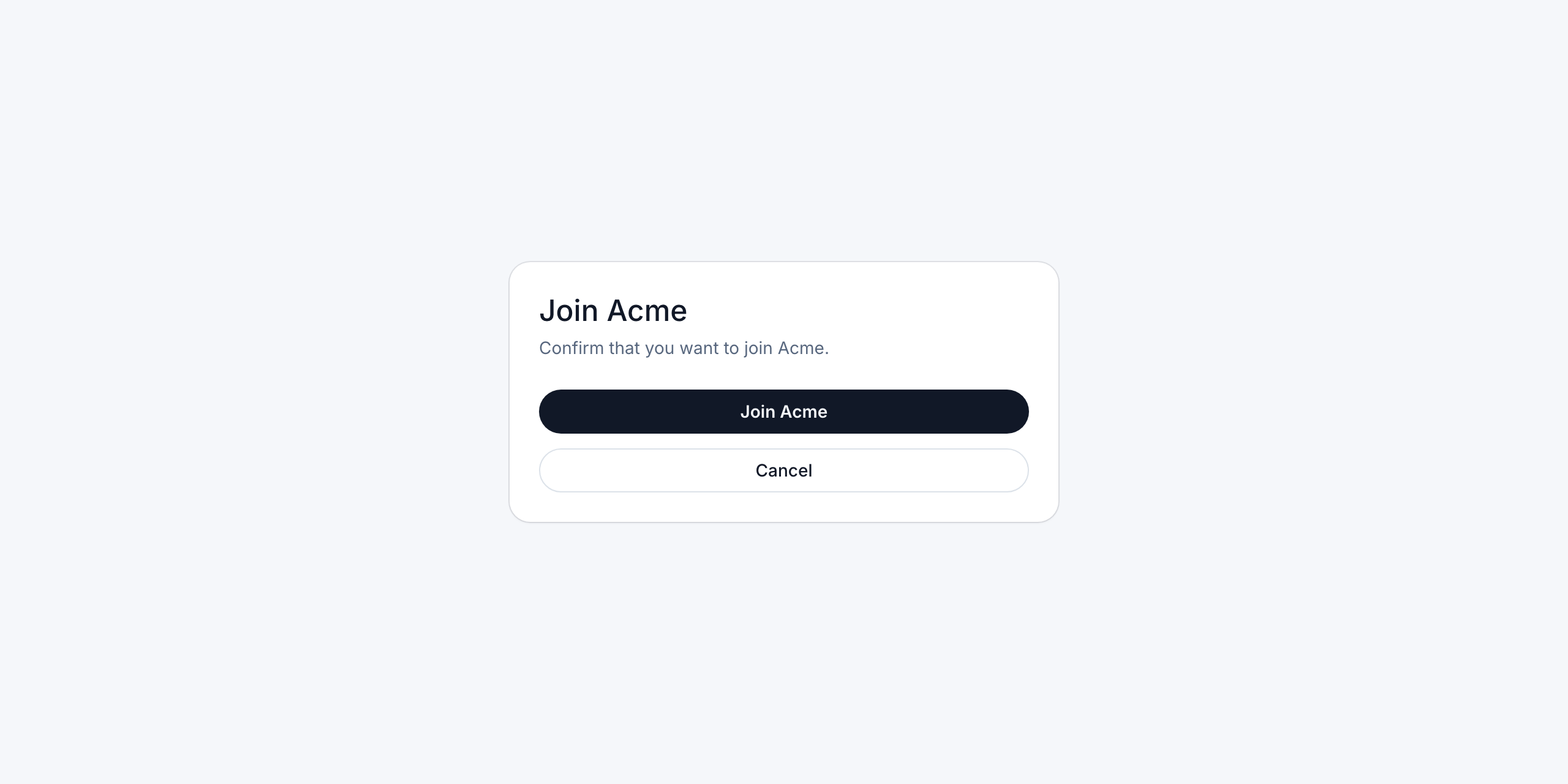
- Click Join followed by the organization's name. You see a "Joined" confirmation and the Dashboard opens.
You join with the Member role. An admin can give you other roles later.
If you're signed in with a different email address, the invite page asks you to click Sign out and switch account. Sign in with the invited email address, then open the invite again.
Join with an invite link
An invite link isn't tied to an email address, so anyone who has it can use it.
- Open the link.
- Log in or sign up with any email address, and verify it if Bizbot asks.
- Click Join followed by the organization's name.
An invite link can have an expiry date and a maximum number of uses. The organization's allowed email domains still apply: if the organization only allows certain domains, you can only join with an email address at one of them.
If your request needs approval
Some organizations turn on Approval required to join. When you click Join, you see a message that your request was sent for approval, and the invite page shows Waiting for approval.
A member who manages members approves the request. Bizbot doesn't email you when that happens. Open the invite again later to check. Once you're approved, you're in the organization.
If you're already in an organization
When you accept an invite while you're in another organization, Bizbot explains what leaving means before you join:
- You lose access to your current organization, including its chats, documents, schedules and time off.
- Anything you added stays with that organization.
- To go back, you need a new invite.
Tick the I understand I'll leave … box (with your current organization's name), then click Join.
If you're the last admin of your current organization and it has other members, you can't join a new one. Make another member an admin first.
Leave an organization
- Click your organization's name at the top of the sidebar.
- Scroll to Danger zone and click Leave Organization.
- Read what happens when you leave.
- If you're the last admin, choose a New Admin from the list.
- Type the organization's name to confirm, and click Leave Organization.
After you leave, Bizbot asks you to create a new organization, or you can join another one with an invite.
If you're the last admin and you can't manage members, you can't choose a new admin yourself. Ask a member who can manage members to make another member an admin first. If you're the only member left, you can leave without choosing anyone.
Invite errors
| Message | What it means |
|---|---|
| Invite expired | The invite is more than 7 days old, or the invite link's expiry date has passed. Ask for a new invite. |
| Invite already used | Someone already accepted this invite. Ask for a new one. |
| Invite revoked | An admin cancelled the invite. Ask for a new one. |
| Invite link used up | The invite link reached its maximum number of uses. |
| Invite not found | The link is wrong, or a newer invite replaced it. Use the most recent invite email. |
| "Your email address's domain isn't allowed to join this organization." | The organization only accepts certain email domains. |
| "This organization has no seats available right now. Ask your organization admin to add seats." | The organization is out of seats. |