Create your account
This page shows you how to create a Bizbot account, verify your email address and sign in.
Anyone.
Sign up with email
- Open the Bizbot sign-up page and enter your Email.
- Enter a Password, and enter it again in Confirm Password.
- Click Sign up. The Verify your email screen opens, and Bizbot sends a confirmation link to your email address.
- Open the email and click the confirmation link. The link takes you to the Login page.
- Sign in with your email and password.
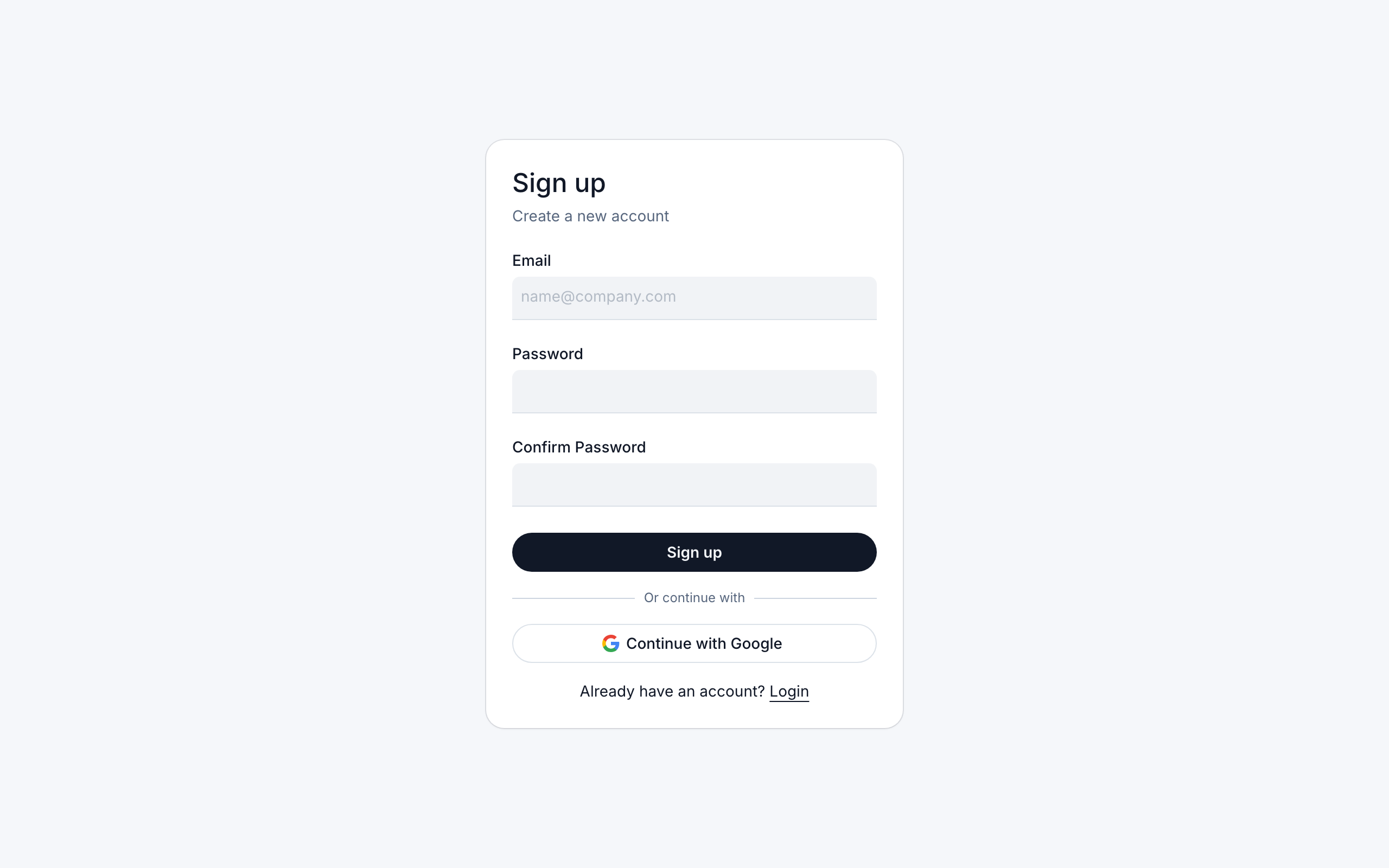
Sign up with Google
- On the sign-up page, click Continue with Google.
- Choose your Google account and allow access. You go straight back to Bizbot, signed in.
You don't need to verify your email address when you sign up with Google.
Verify your email address
Bizbot sends a confirmation link, not a code. Click the link in the email to activate your account.
If the email doesn't arrive:
- On the Verify your email screen, check that your Email is correct.
- Click Resend verification email. You can resend once every 60 seconds. If you request too many emails, Bizbot asks you to wait a few minutes before you try again.
If you try to sign in before you've verified your email address, Bizbot takes you back to the Verify your email screen. If an old or used link doesn't work, the same screen opens so that you can request a new one.
See Email verification if the email still doesn't arrive.
Sign in
- Open the Bizbot Login page.
- Enter your Email and Password and click Login, or click Continue with Google.
If you've forgotten your password, click Forgot your password? on the Login page. See Password reset.
Sign up from an invite
If someone invited you to their organization, start from the Accept invite button in the invite email instead of the sign-up page. This way, Bizbot keeps track of your invite while you create your account.
- Click Accept invite in the email. The invite page opens.
- Click Sign up, and sign up with the email address the invite was sent to.
- Verify your email address. The confirmation link takes you back to the invite.
- Click Join followed by the organization's name, for example Join Acme.
If you use an invite link that isn't tied to an email address, you can sign up with any email address.
See Create or join an organization for more about joining.
What happens next
The first time you sign in, Bizbot asks you to complete your profile and create your organization. If you joined from an invite, you're already in an organization, so you go straight to the Dashboard.