Invite your team
This page shows you how to get your teammates into your Bizbot organization.
Members with the Manage Members or Invite Members permission send invites and create invite links. Approving join requests needs Manage Members. Changing Allowed email domains and Approval required to join needs Manage Organization. See Roles and permissions reference.
Before you start
- Everything on this page happens on your organization's page. Click your organization's name at the top of the sidebar to open it.
- On plans billed per seat, each invite that is still valid takes up a seat. Check that you have enough seats in Manage > Billing.
Invite by email
An email invite is for 1 person. It works once and expires after 7 days.
- On your organization's page, in the Members section, click Invite member.
- Enter the person's Email.
- Click Send invite. Bizbot emails them an invite.
The dialog also shows the invite link for that person, with a Copy button, in case you'd rather send it yourself. Only the invited email address can use it, and it's shown only once.
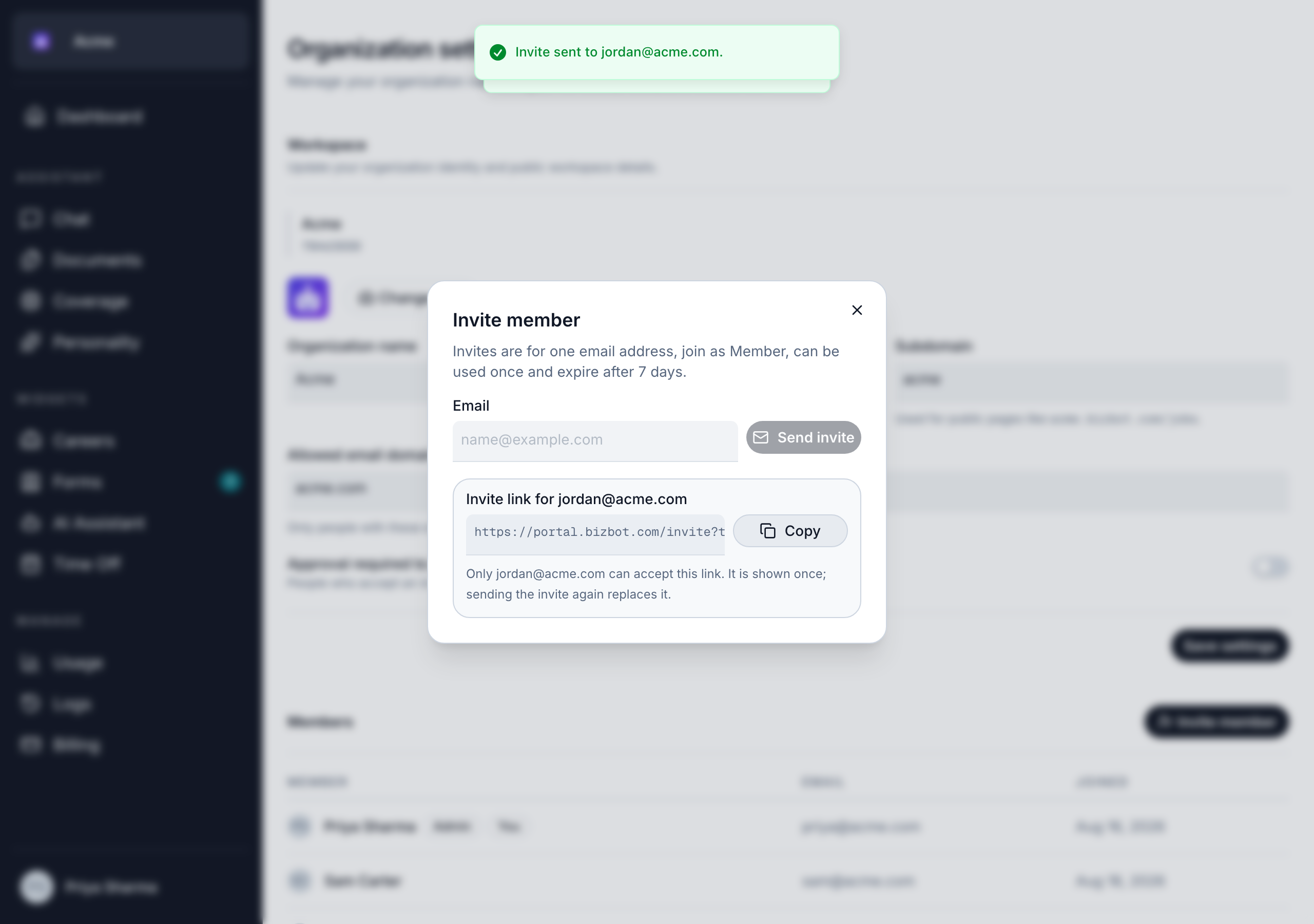
Everyone who accepts an invite joins with the Member role. You can't pick a role when you invite. After they join, change their roles or apply a member preset in Members. See Members.
Share an invite link
An invite link isn't tied to an email address. Anyone who has it can use it to join, so share it only with people you trust, for example in your team's private chat.
- On your organization's page, under Invite links, click Create link.
- Choose when it Expires after: 1 day, 7 days, 30 days, 90 days or Never.
- Optionally, set Max uses, from 1 to 1000. Leave it empty for unlimited uses.
- Click Create link, then copy the link.
The Invite links list shows each link's creation date, expiry and number of uses. A link that has run out shows Expired or Used up.
To stop a link from working, click its revoke button and confirm with Revoke link. People who already joined with it stay in the organization.
Limit who can join by email domain
Allowed email domains makes sure only people with your company's email addresses can be invited or join.
- On your organization's page, find Allowed email domains.
- Enter your domains, separated by commas, for example
acme.com, acme.co.uk. - Click Save settings.
Leave the field empty to allow any domain.
This setting doesn't let anyone join on their own. People still need an invite or an invite link. A common setup is an invite link plus allowed email domains: anyone at your company who has the link can join, and nobody else.
The rule applies to invites you've already sent. If you narrow the list, pending invites to other domains stop working. Existing members aren't affected.
Approve join requests
Turn on Approval required to join if you want to check everyone before they get in.
- On your organization's page, turn on Approval required to join.
- Click Save settings.
When someone accepts an invite or uses an invite link, they aren't added right away. Instead, their invite appears under Pending invites with the Awaiting approval badge.
To let them in, click the approve button next to their email address. They join with the Member role.
Bizbot doesn't email the person when you approve them. Let them know, so they can open their invite again and start using Bizbot.
Resend or cancel an invite
The Pending invites list shows every email invite that hasn't been accepted yet, with its expiry date. Expired invites show the Expired badge.
- To resend an invite, click the resend button next to it. Bizbot sends a new email and restarts the 7 days. The old link stops working.
- To cancel an invite, click the revoke button and confirm. The link stops working and the seat is freed.
Good to know
- What the invitee receives: an email with the subject "… invited you to join …", with your name and your organization's name, and an Accept invite button. The email says the invite works once, only for their email address, and when it expires. See Create or join an organization for what they do next.
- Seats: if every seat is taken, sending an invite fails with "This organization has no seats left. Add seats or revoke a pending invite first." Add seats in Manage > Billing or cancel an old invite. See Billing and plans.
- Your plan's member limit: your plan can also cap the number of members, even if it isn't billed per seat. See Usage and limits.
- People already in another organization: they leave their current organization when they join yours.
- Sending limit: you can send or resend up to 60 invite emails an hour. Creating an invite link counts toward the same limit.