Set up your profile
This page shows you how to complete your profile when you first sign in, and where to change it later.
Any member, for their own profile.
Complete your profile
The first time you sign in without an invite, Bizbot shows the Complete your profile screen. You can't use Bizbot until you finish it, because every account needs an organization.
- Optionally, click Change picture and choose an image for your profile photo.
- Enter your First name and Last name.
- Enter your Organization name, such as your company's name. This is required.
- Click Continue. Bizbot creates your organization, makes you its admin and opens the Dashboard.
Bizbot also gives your organization a subdomain based on its name, such as acme.bizbot.com, for your public pages. You can change it later in your organization settings.
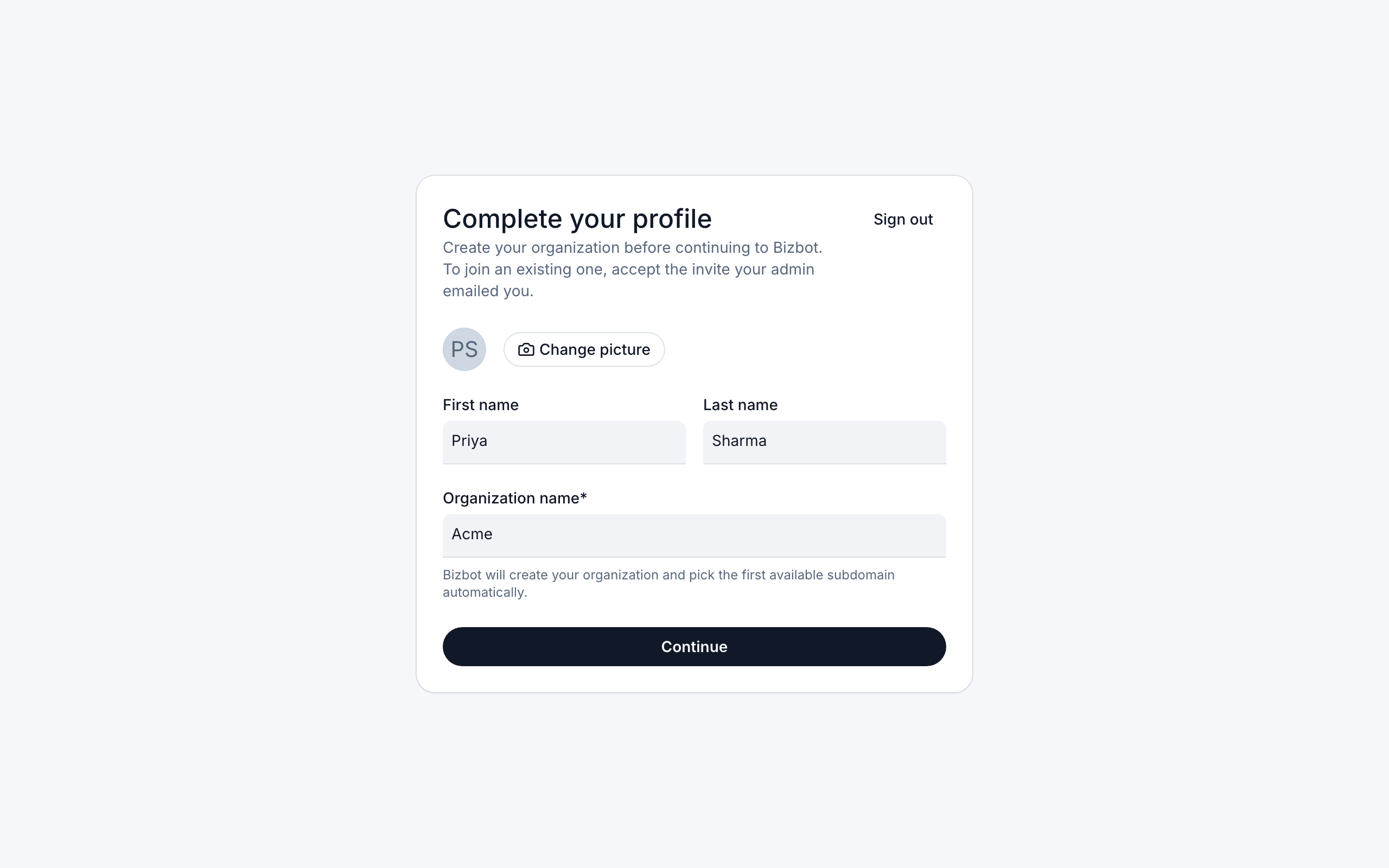
If your company already uses Bizbot, don't create a new organization. Ask an admin to invite you, then open the invite from your email. If you've already opened an invite, the screen shows You have a pending invite with a link back to it.
If you joined an organization from an invite, you skip this screen. Add your name and photo in Settings instead.
Change your profile later
- Click Settings at the bottom of the sidebar. The Your settings page opens.
- Under Profile, click Change picture to upload a new photo, or edit your First name and Last name.
- Click Save settings.
Your Email is shown but can't be changed here. A new photo is saved as soon as it uploads.
Choose your notifications
Under Notifications, the Time Off switch turns time-off emails on or off. They tell you about time-off requests you can approve, and about decisions on your own requests. Approval emails need the Approve Time Off or Manage Time Off permission. Decisions on your own requests are sent whatever your permissions.
It's on until you turn it off. The switch saves as soon as you change it, and you see "Notification settings saved."
Emails about new contact form submissions and job applications aren't set here. Each form and each job posting sends them to its own notification email. See Set the notification email and Choose who gets new applications.
Change the appearance
Under Appearance:
- Use the sun and moon toggle to switch between light and dark mode.
- Choose a color theme: Default, Harbor, Field, Canyon, Dusk or Mosaic.
Your appearance settings only apply to your account.
Change your password
- In Settings, under Account, click Change password.
- Enter your Current password and a New password of at least 6 characters.
- Click Save password.
If you've forgotten your current password, sign out and use Forgot your password? on the Login page instead. See Password reset.
Export your data
You can download a copy of your personal data from Bizbot.
- In Settings, under Account, click Export data.
- Enter your Password to confirm it's you.
- Click Request export. You see "Export started — check your email for the download link."
Bizbot emails you a Download my data link. The download is a ZIP file with an export.json file of your records and any files you uploaded. It includes your profile, organization memberships, chat history, saved resources and profile photo.
The download link expires after 24 hours. If it expires, request a new export.