Review applications
This page explains how candidates apply, how Bizbot screens their applications, and how to review each one.
Members with the Manage Job Applications permission.
How applicants apply
Applicants don't need a Bizbot account.
- They open the job. They go to your careers page, open a job and click Apply.
- They enter their details: Full name and email address.
- They upload a résumé. It can be a
.pdf,.docx,.txtor.mdfile, up to 10 MB. Bizbot reads it and compares it with the job's requirements. - They answer follow-up questions. Under Application questions, they answer the questions the AI wrote for them, based on gaps between their résumé and your requirements. The number of questions is set on the job.
- They submit. They click Submit application and see a confirmation. They also get an email, "Your application to … was received", with your organization's name.
Before they apply, applicants are told that automated tools may help with screening, and that people make the hiring decisions.
Each visitor can upload up to 10 résumés an hour.
How AI screening works
When an application comes in, Bizbot's AI:
- Reads the résumé and builds a candidate profile: contact details, experience, education, skills, certifications and links.
- Scores each requirement from 0 to 5, with the evidence from the résumé and any gap it found.
- Writes follow-up questions about those gaps, for the applicant to answer.
- Makes a final assessment once the answers are in:
- an overall score from 0 to 100
- updated requirement scores
- its reasoning
- a recommendation: ADVANCE, HOLD or DECLINE
AI screening is included in the Business and Enterprise plans. On the Free plan, applications are saved without a score, and applicants aren't asked follow-up questions. See Plan features.
The AI only uses what's in the résumé and the answers, and is told never to consider protected characteristics. It also checks each answer's writing style, and marks answers that look AI-written as Potentially AI-generated. This is only a hint: it isn't proof, and it doesn't change the score.
AI screening helps you sort applications. It doesn't decide who gets the job. Read the application and check the AI's reasoning yourself before you make any decision about a candidate.
Find applications
- Go to Widgets > Careers.
- Select a job. Its applications are listed below the posting, with how many there are.
Each row shows the applicant's résumé, name, contact details, location, score and date. Rejected applicants are marked Rejected, and applicants you've moved forward are marked Moved forward. Click Score or Date to sort the list.
An application stays unread, marked with a dot and a bold name, until someone who can manage job applications opens it. Unread applicants for open jobs are counted under New applicants on the Dashboard. Applications received before this feature was released count as read.
Review an application
Click an application to open it.
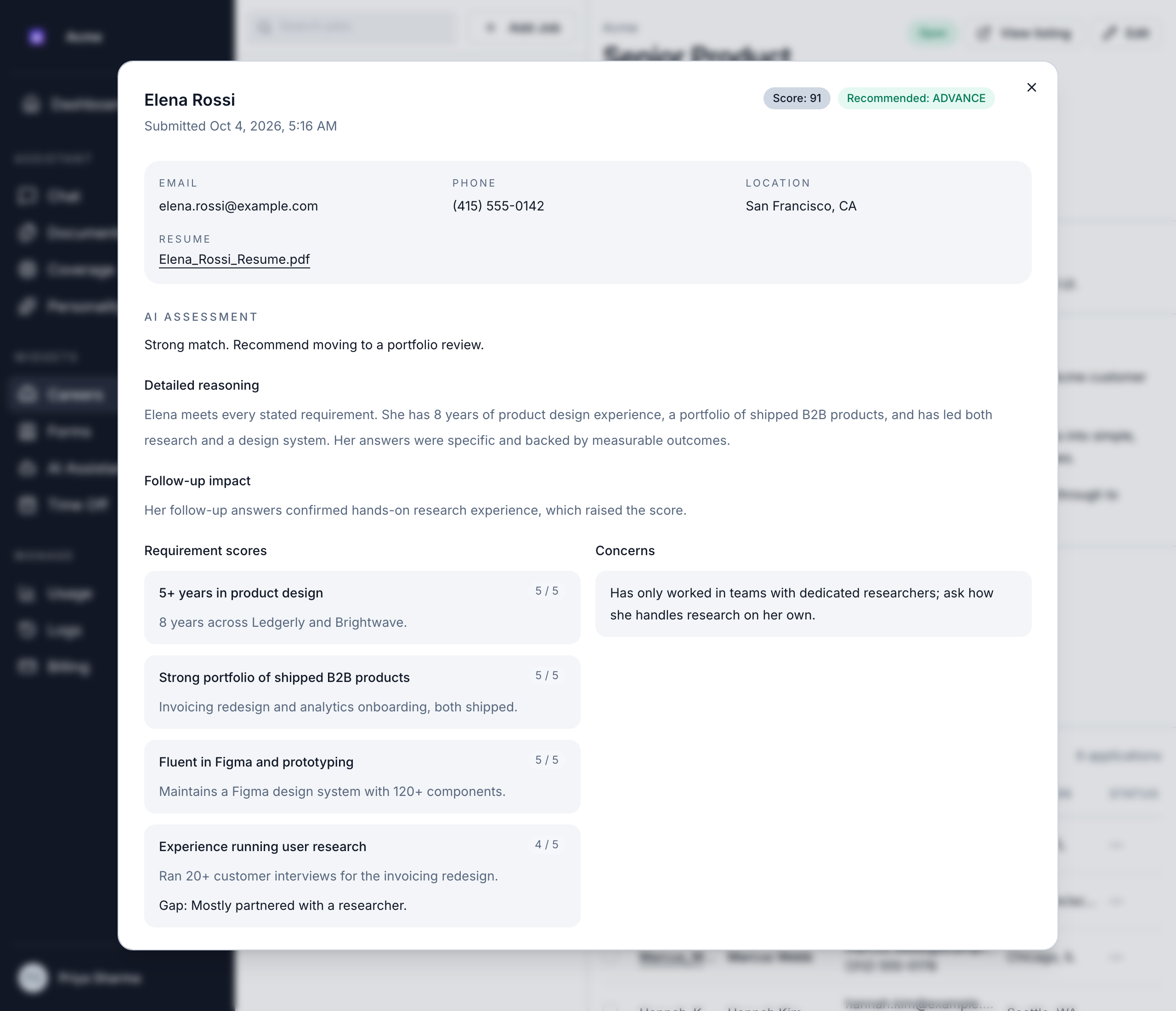
At the top:
- the applicant's name and when they applied
- Score and the recommendation, such as "Recommended: ADVANCE". Applications without one show No recommendation.
- Moved forward, if they've been moved forward, with the date
- Rejected, if they've been rejected, with the date
The details:
- Email, Phone and Location.
- Resume: click the file name to open or download the résumé.
- Rejection note and Rejected by, for rejected applicants.
- Moved forward by, for applicants you've moved forward.
AI Assessment:
- The AI's summary of its decision, and Detailed reasoning where there's more.
- Follow-up impact: how the applicant's answers changed the assessment.
- Requirement scores: each requirement with its score from 0 to 5, the evidence, and any gap.
- Concerns: anything the AI flagged.
Questionnaire responses: each follow-up question and the applicant's answer, with Potentially AI-generated where it applies.
Candidate profile: the summary, links, skills, certifications, education and experience read from the résumé.
To move applicants forward, reject them or follow up, see Manage applicants.
Get notified of new applications
When an application is submitted, Bizbot emails "New job application for …", with the job title. The email has the candidate's details, the AI assessment, their answers to the follow-up questions and an Open application button.
It goes to the job's notification email, if it has one. Each job posting has its own, and a job without one sends no email. See Choose who gets new applications.