Create a job listing
This page shows you how to publish a job on your careers page, so that candidates can find it and apply. In the app, hiring lives under Widgets > Careers, and job listings are called job postings.
Members with the Manage Job Applications permission. See Roles and permissions reference.
Create a job posting
-
Go to Widgets > Careers.
-
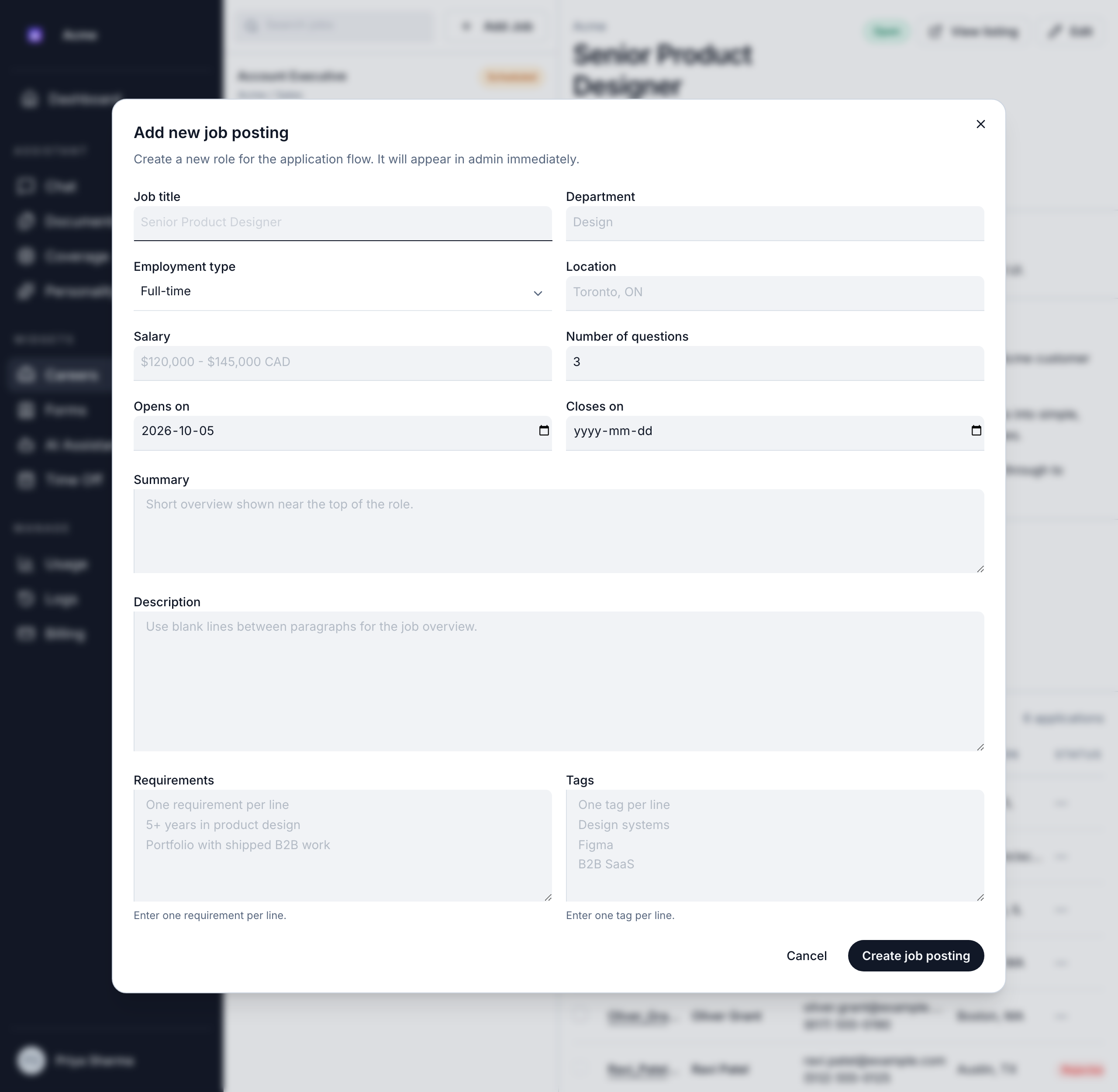
Click Add Job. The Add new job posting dialog opens.
-
Fill in the details:
Field What to enter Job title The role's name, such as "Senior Product Designer". Required. Department The team, such as "Design". Choose one from the list. Required. Employment type Full-time, Part-time, Contract or Internship. Location Where the role is based, such as "Toronto, ON" or "Remote". Salary The pay range, written as you want candidates to see it. Number of questions How many follow-up questions the AI asks each applicant, from 0 to 9. The default is 3. Opens on The date the job opens. Required. It's today unless you change it. Closes on The date the job closes. Leave it empty to keep it open. Notification email Where new applications are emailed, such as careers@example.com. Leave it empty to send no email. See Choose who gets new applications.Summary A short overview shown near the top of the posting. Required. Description The full job description. Leave a blank line between paragraphs. Required. Requirements What the role needs, one per line, such as "5+ years in product design". Tags Internal notes on what you value, one per line, such as "Figma" or "B2B SaaS". -
Click Create job posting. You see "Job posting created."
The job appears in your list right away. It's active, and it shows on your public careers page once its Opens on date arrives.
Your plan can limit how many active job postings you have. When you're at the limit, you see "You've reached your plan's limit of active job postings. Deactivate one or upgrade your plan to add another." See Usage and limits.
Choose who gets new applications
Each job posting has its own Notification email. When someone applies, Bizbot emails that address "New job application for …", with the job title. Use it to send each role's applications to the right person, for example engineering roles to your engineering lead.
- New job postings start with no address, so they send no emails until you set one.
- One address per job posting. To reach several people, use a shared inbox or a distribution list.
- Leave it empty to send no email. Applications still arrive in Widgets > Careers as usual.
- The address is checked. An address that isn't valid shows "Enter a valid email address.", and you can't save the job until you fix or clear it. Bizbot stores it in lowercase.
- Candidates never see it. The address isn't shown on your careers page or the job's public page.
To change or clear the address later, edit the job. See Edit a job posting.
If the job saves but its address doesn't, you see "The job was saved, but its notification email couldn't be saved." Edit the job and save the address again.
Notification emails are included in the Business and Enterprise plans. On the Free plan, no email is sent even when an address is set. See Plan limits. For what the email contains, see Get notified of new applications.
Departments
Departments are shared by every job posting in your organization. You manage them from the Department list in the job dialog:
- Add a department: click Add new at the bottom of the list, enter the name and click Save department.
- Rename a department: click its rename button. The new name replaces the old one on every job posting that uses it.
- Delete a department: click its delete button and confirm. Job postings that already use it keep it. When you edit one of those postings, the department is shown as "(deleted)".
How the AI uses your requirements, tags and questions
Bizbot screens each application with AI, based on what you enter here:
- Requirements are what each applicant is scored against. The AI rates how well their résumé matches each requirement, from 0 to 5, with evidence. Write one clear, specific requirement per line.
- Tags give the AI extra context about what your team values. Candidates never see them, and they aren't treated as requirements.
- Number of questions sets how many follow-up questions the AI writes for each applicant, based on gaps between their résumé and your requirements. The applicant answers them before submitting. Set it to 0 to skip follow-up questions.
See Review applications.
Job status
Each job shows a status, based on whether it's active and on its dates:
| Status | What it means |
|---|---|
| Inactive | Someone clicked Deactivate, or your plan's limit turned it off. |
| Scheduled | The Opens on date is in the future. |
| Open | It's active and between the opening and closing dates. |
| Closed | The Closes on date has passed. |
Only Open jobs appear on your careers page and take applications. Applicants who try to apply for a job that isn't open see "This job is no longer accepting applications.", or "This job is not open for applications yet." for a scheduled job. See Open and close applications.
Share your careers page
Your careers page lists all your job postings, at your organization's subdomain, such as acme.bizbot.com/jobs. Each job also has its own page.
- Share the careers page: send people to your careers page address, for example from your website's menu, an email or social media.
- Share one job: in Widgets > Careers, select the job and click View listing. It opens the job's public page, and you can copy its address from your browser.
Embed it on your website
To show your careers page inside your own website, add it in an iframe, a standard piece of HTML that displays one web page inside another. Ask whoever manages your website to add it:
<iframe
  src="https://acme.bizbot.com/jobs"
  title="Careers"
  style="width:100%;height:800px;border:0"
  loading="lazy"
></iframe>
Replace the address with your careers page address.
The embedded page follows the visitor's light or dark mode. To match your website's colors and fonts, click Generate theme on Widgets > Forms and enter your website's address. Bizbot gives your developer theme settings to add to the careers page address in the iframe. See Share a public form.
What applicants see
Applicants browse your open jobs, search them, and open one to read the summary, description, requirements, location, type, salary and dates. They click Apply to start.
Do applicants need an account? No. Anyone can apply from your careers page without signing up. They enter their name and email address, upload a résumé, and answer the follow-up questions. See How applicants apply.
Members of your organization can also see open jobs inside Bizbot, from Widgets > Careers in the sidebar.