Edit and manage listings
This page shows you how to keep your job postings up to date: find them, edit them, and open or close them with their dates.
Members with the Manage Job Applications permission.
Find a job posting
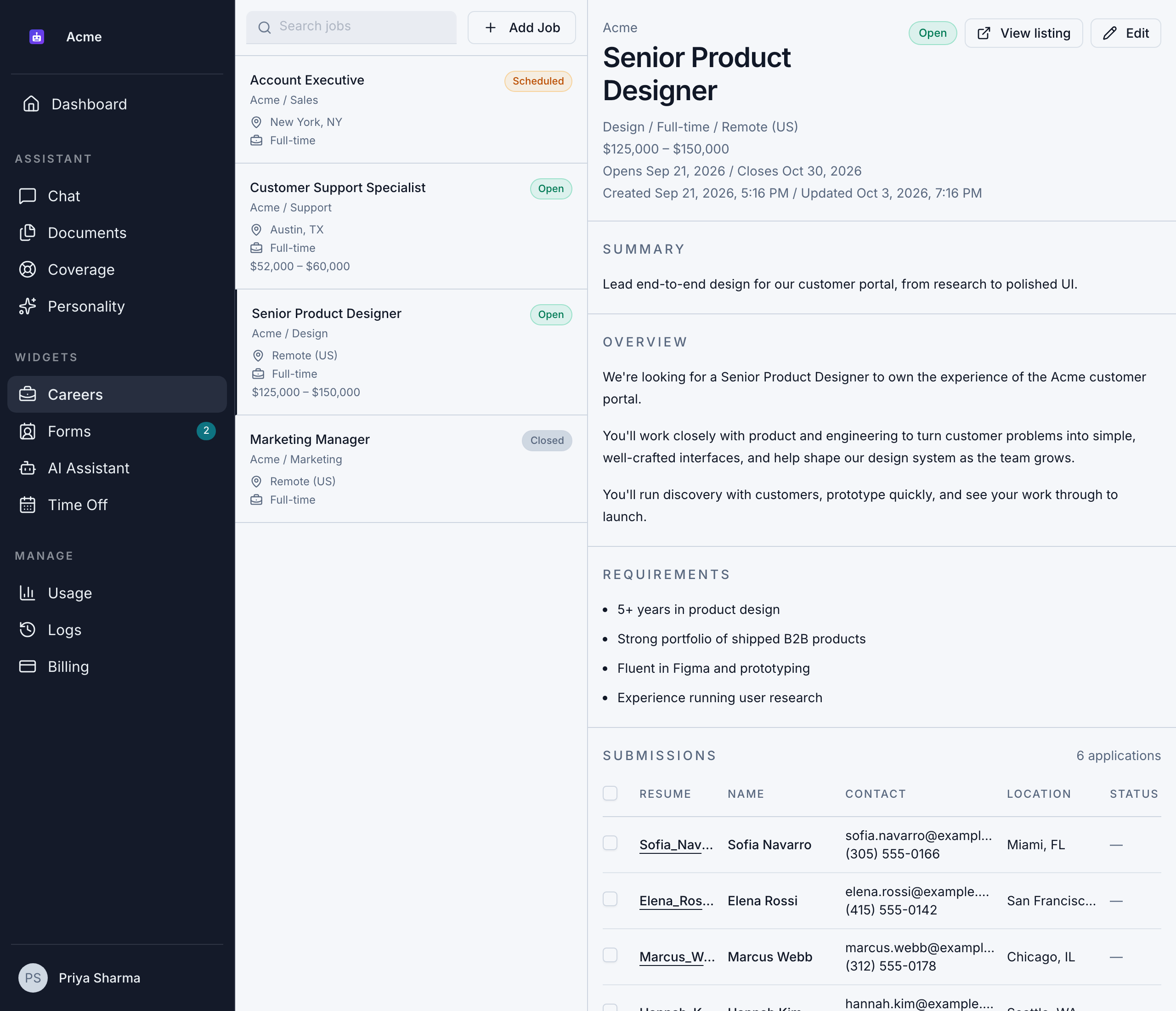
Go to Widgets > Careers. On the left is the list of your job postings, with each one's location, employment type, salary and status. Use Search jobs to find one.
Select a job to see it on the right:
- The status: Inactive, Scheduled, Open or Closed. See Job status.
- Buttons: View listing, Activate or Deactivate, and Edit.
- When it was created and last updated.
- The posting itself, as candidates see it.
- Its applications, with how many there are.
Edit a job posting
- Select the job and click Edit. The Edit job posting dialog opens.
- Change any of the details. See Create a job posting for what each field does.
- Click Save changes. You see "Job posting updated."
If you close the dialog with changes you haven't saved, Bizbot asks whether to Discard changes or Keep editing.
To change where new applications are emailed, edit Notification email in the same dialog. Clear it to stop the emails. See Choose who gets new applications.
Changes appear on your careers page straight away.
Editing a job doesn't change applications you've already received. Each application is scored once, when it's submitted, against the requirements at that time. New requirements, tags or a new number of questions only apply to new applications.
Open and close applications
A job takes applications only while it's active and between its dates.
- To stop a job right away: select it and click Deactivate. You see "Job posting deactivated." It shows as Inactive.
- To start it again: click Activate. You see "Job posting activated."
- To schedule a job: set Opens on to a future date. It shows as Scheduled until then.
- To close a job on a date: set Closes on. From the day after, it shows as Closed.
- To reopen a closed job: clear Closes on, or set it to a future date.
Inactive, scheduled and closed jobs don't appear on your careers page and don't take applications. They stay in your list in Widgets > Careers, with their applications.
Your plan can limit how many active job postings you have. If you're at the limit, Activate fails with "You've reached your plan's limit of active job postings. Deactivate one or upgrade your plan to add another." If your organization moves to a plan with a lower limit, Bizbot keeps your oldest active job postings and deactivates the newest ones beyond the limit. Each one is recorded in the action log. See Usage and limits.
Delete a job posting
You can't delete a job posting in Bizbot. To take a role off your careers page, click Deactivate, or close it with its Closes on date. Its applications are kept.