Control document access
This page explains how document access works in Bizbot, and shows you how to choose who can use each document in your knowledge base.
Members with the View Documents and Modify Documents permissions. See Roles and permissions reference.
How access works
Every document has a visibility: a list of roles that can use it. When a member asks the assistant a question, it only searches documents that meet both of these conditions:
- The member has the View Documents permission.
- The document is shared with at least 1 of the member's roles.
Bizbot applies these checks before the assistant searches, so documents a member can't use are never part of their answer. This means 2 members can ask the same question and get different answers. For example, if the salary bands document is shared only with a Managers role, a manager's question about salaries is answered from it, and everyone else's isn't.
The same rules decide which documents a member sees under Assistant > Documents.
Choose who can use a new document
When you upload a document, click Access in the Add file dialog and tick the roles that can use it. Bizbot ticks the first role in the list for you, so check the selection before you click Upload. See Upload documents.
Change who can use a document
- Go to Assistant > Documents.
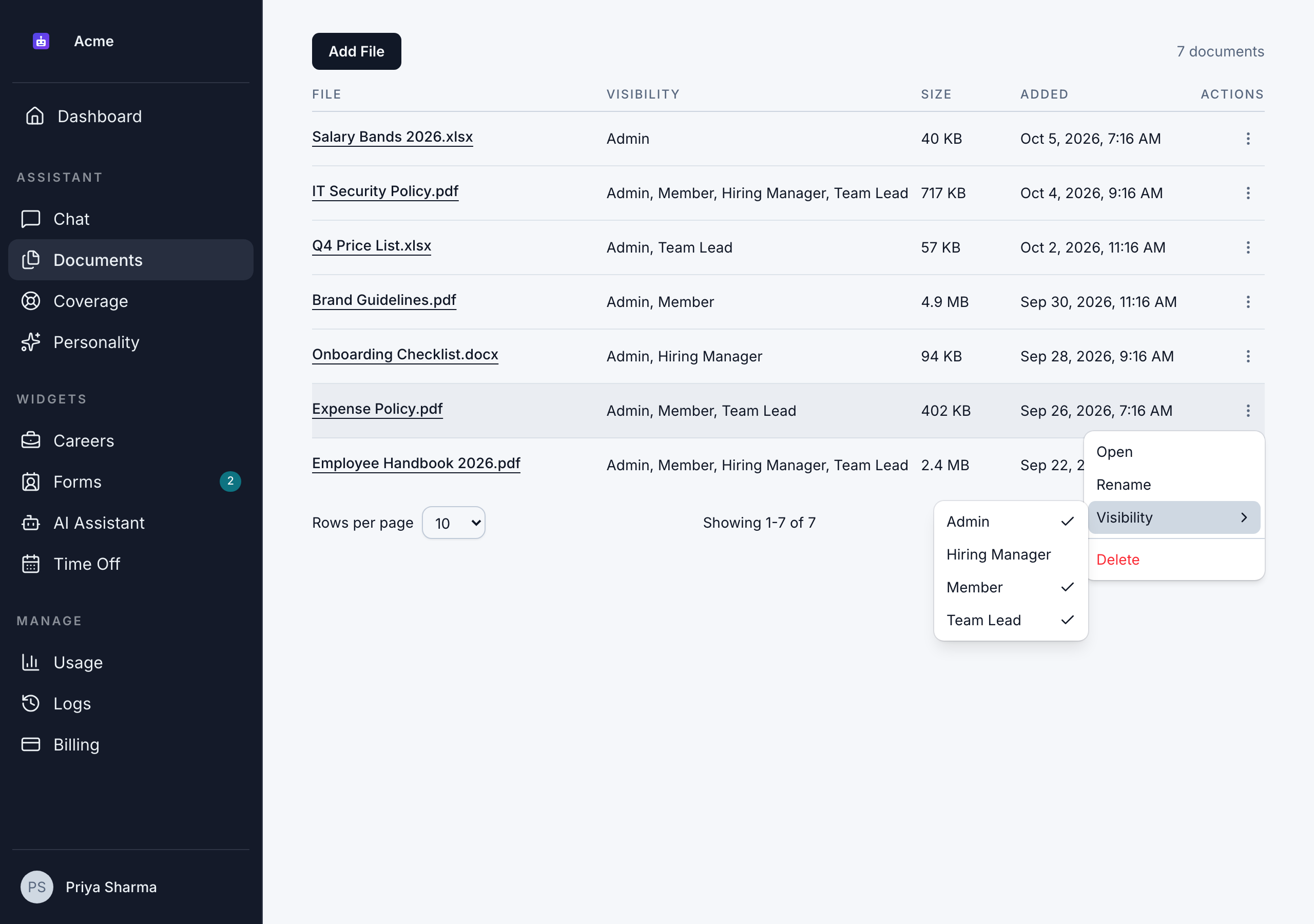
- Open the document's actions menu and point to Visibility.
- Tick the roles that should use the document, and untick the ones that shouldn't. Each change saves right away.
The Visibility column updates to show the selected roles. The assistant follows the new roles from the next question anyone asks.
Documents with no roles
If you untick every role, the document is Hidden from everyone. It stays in the knowledge base, but the assistant doesn't use it for anyone. This is useful when you want to take a document out of use without deleting it.
Members with Modify Documents can still see and open hidden documents in the list.
Admins and document access
Admins can see and manage every document, because the Admin role has the Modify Documents permission. But when an admin asks the assistant a question, the same rule applies as for everyone else: the assistant only uses documents shared with one of the admin's roles.
If admins should get answers from every document, add the Admin role to each document's visibility.
Good to know
- Changing a member's roles changes which documents the assistant uses for them, from their next question.
- Deleting a role removes it from every document it was on. A document that had only that role becomes hidden from everyone.
- Uploading from chat shares the file with all of your own roles. See Upload documents.
- The website assistant never uses your knowledge base, whatever the visibility. It only answers from the knowledge you add in Widgets > AI Assistant. See Assistant settings.
Process documents work differently
Process documents in Scheduling > Coverage aren't part of the knowledge base, and the assistant in Chat doesn't use them. Their access isn't based on roles. Each one is Private, Delegable or Organization, and is shared with the teammates covering for you. See How coverage works.