Upload documents
This page shows you how to add documents to your organization's knowledge base, so that the assistant can answer questions from them.
Members with both the View Documents and Modify Documents permissions. See Roles and permissions reference.
Before you start
- Check that your file is a supported type and no larger than 10 MB. You can upload
.txt,.md,.pdf,.docx,.xlsx,.csvand.jsonfiles. See Supported file types. - Decide which roles should be able to use the document. Only members with one of those roles get answers from it. See Control document access.
Upload a document
- Go to Assistant > Documents.
- Click Add File. The Add file dialog opens.
- Drag your file onto Drop file here or click to browse, or click it to choose a file.
- Optionally, click the file name to change it. This is the name everyone sees in the list.
- Click Access and tick the roles that can use the document. Bizbot ticks the first role in the list for you, so check it before you upload. If you untick every role, the button shows Hidden.
- Click Upload. When the upload finishes, you see "File uploaded and queued for indexing." and the document appears in the list.
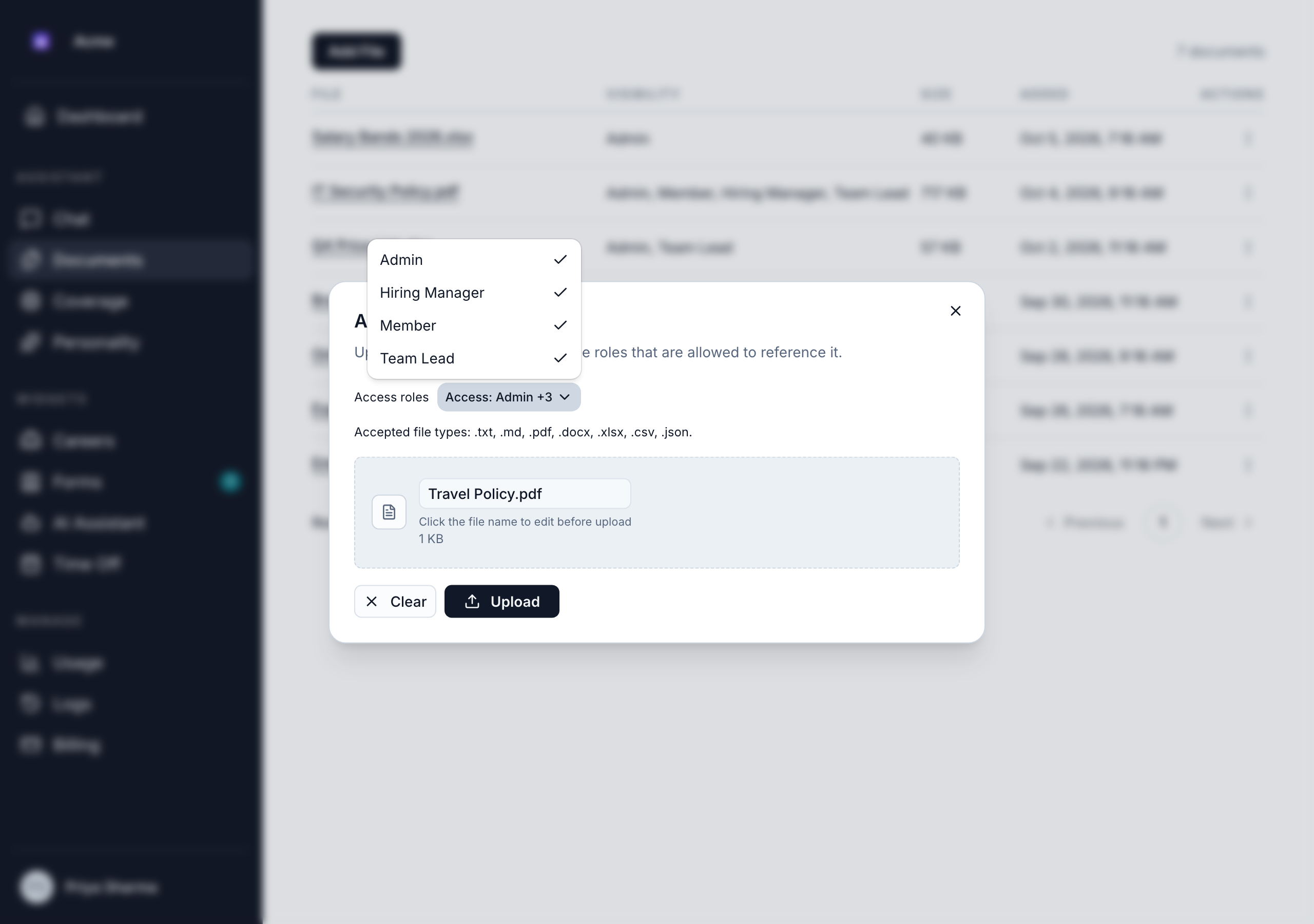
A document with no roles is hidden from everyone: the assistant won't use it for anyone. It shows as Hidden from everyone in the list. You can add roles later.
Upload from chat
You can also upload a file with the upload button in Assistant > Chat. It accepts the same file types.
The file isn't a private attachment to your conversation. It's added to the knowledge base, visible to all of your roles, so other members with those roles can also get answers from it. You need Modify Documents to upload from chat.
What happens after upload
While the upload runs, Bizbot:
- Stores the original file.
- Reads the text out of it.
- Splits the text into short passages and indexes them for search.
All of this happens before the success message appears. When you see "File uploaded and queued for indexing.", the assistant can already use the document. Large files take longer to upload.
Upload errors
| Message | What it means and what to do |
|---|---|
| "Unsupported file type. Allowed: …" | The file isn't one of the supported types. Save it in a supported format, such as .pdf or .docx, and try again. |
| "File too large" | The file is over 10 MB. Split it into smaller files, or remove images from it. |
| "Empty file" | The file has no content. |
| "The uploaded document did not contain any chunkable text." | Bizbot couldn't find any text in the file. This usually means a scanned PDF that contains only images of pages. Upload a version with selectable text. |
| "Invalid JSON file: … could not be parsed." | The .json file has a formatting error. Fix it and try again. |
| "You do not have permission to modify documents." | You need the Modify Documents permission. Ask an admin. |
| "You've reached your plan's limit of documents. Delete one or upgrade your plan to upload another." | Your knowledge base has as many documents as your plan allows: 25 on the Free plan, 500 on the Business plan. Delete one you no longer need, or upgrade. See Plan limits. |
If an upload fails partway through, the document may stay in the list without being usable. Delete it and upload the file again. See Manage documents.