Approve requests
This page shows you how to decide time-off requests, see who's away and check your team's balances.
Members with the Approve Time Off or Manage Time Off permission. Adjusting balances needs Manage Time Off. See Roles and permissions reference.
Find pending requests
- Go to Scheduling > Time Off.
- Click Review time off requests, or Manage time off if you manage time off. A badge on the button shows how many requests are waiting.
The Approvals tab lists pending requests, with each member's dates, time, current balance and reason.
You also get an email for each new request that needs approval, if you have Time Off notifications turned on in Settings. Its Review request button takes you straight to the request.
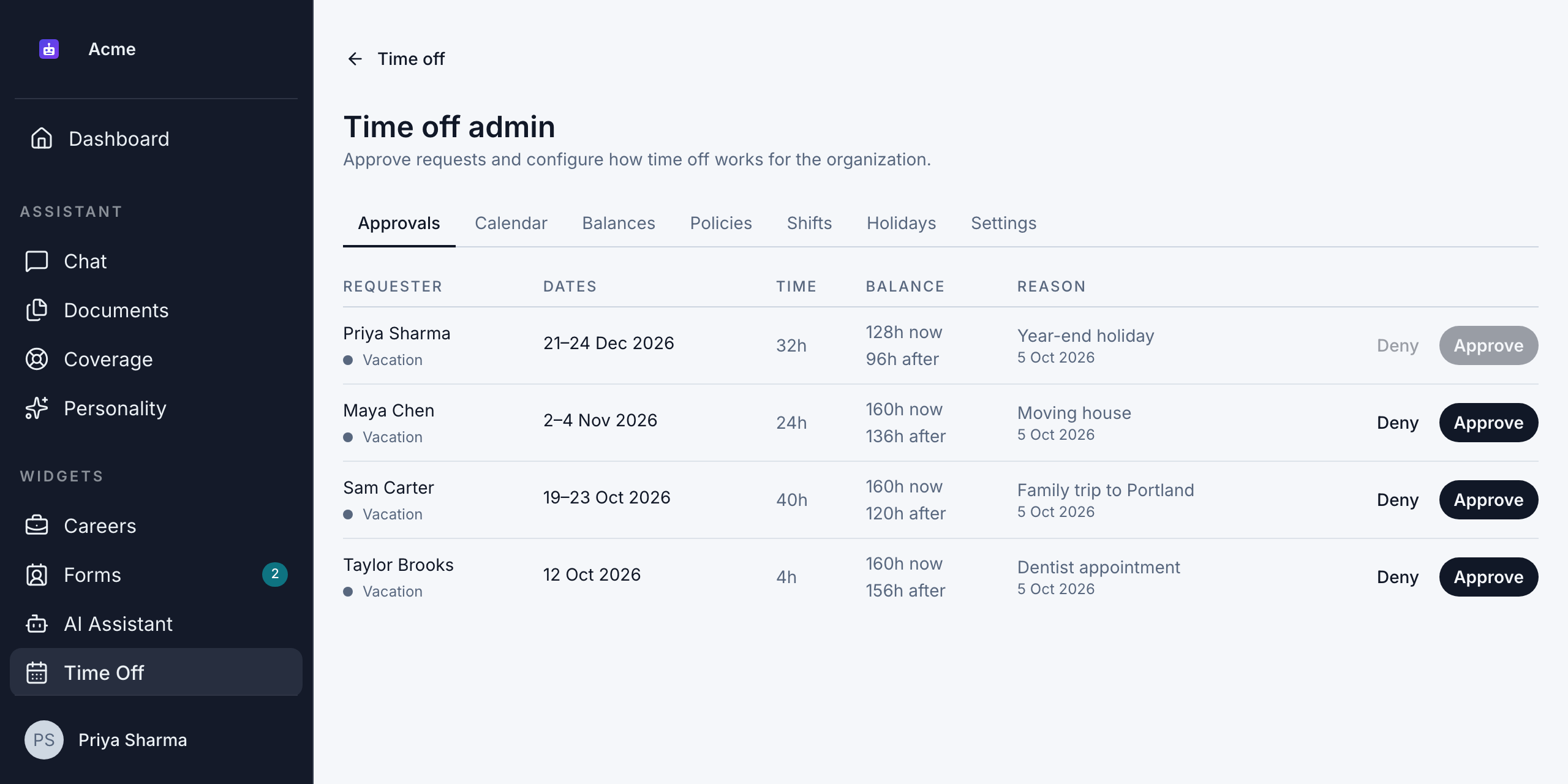
Approve or deny a request
- On the Approvals tab, find the request and click Approve or Deny.
- Optionally, add a note. The note is shared with the requester.
- Confirm with Approve or Deny. You see "Request approved." or "Request denied."
What happens next:
- Approved: the time is taken from the member's balance, and they get an email saying their time off is booked, with your note.
- Denied: nothing is taken from their balance. They get an email saying the request wasn't approved, with your note. If they'd arranged coverage for the request, it ends.
If someone else decided the request first, you see "This request was already decided."
Your own requests
By default, you can't decide your own requests. Approve and Deny are turned off on them, and someone else has to decide them. A member with Manage Time Off can change this with Allow self approval. See Manage time-off settings.
Requests that overlap a holiday
If a holiday was added after some requests were booked, the Approvals tab lists the requests that overlap it. They weren't changed. To give the day back, the member cancels and requests again.
Check who's away
The Calendar tab shows who's away, and under which policy. It shows approved time off, plus your own pending requests. Other members' pending requests are on the Approvals tab. For a quick look at the next 7 days, see Who's out on the Dashboard.
- Switch between Month and Quarter views.
- Filter by member or by policy.
- Use the arrows to move between periods.
Review balances
The Balances tab shows every member's balance under each policy. Use Search members to find someone.
Click a balance to see its history: every grant, request, carryover and adjustment. See View your requests for what each entry means.
Adjust a balance
Members with Manage Time Off can correct a balance, for example to add time for extra hours worked or to fix a mistake.
- On the Balances tab, click Adjust next to the balance.
- Enter the Hours to add or remove, for example
8to add a day or-8to remove one. - Optionally, choose an Effective date.
- Enter a Note explaining why. A note is required.
- Save the adjustment. You see "Balance adjusted."
The adjustment appears in the balance's history as a Manual adjustment, with your note.