Request time off
This page shows you how to request time off, and how Bizbot works out how much it takes from your balance.
Any member. You can only request time off under policies that apply to you.
Before you start
- Check your balances on Scheduling > Time Off. Each card shows how much time you have left under a policy. See View your requests.
- If you don't see any policy to choose from, ask an admin to set one up for you. See Manage time-off settings.
Request time off
- Go to Scheduling > Time Off.
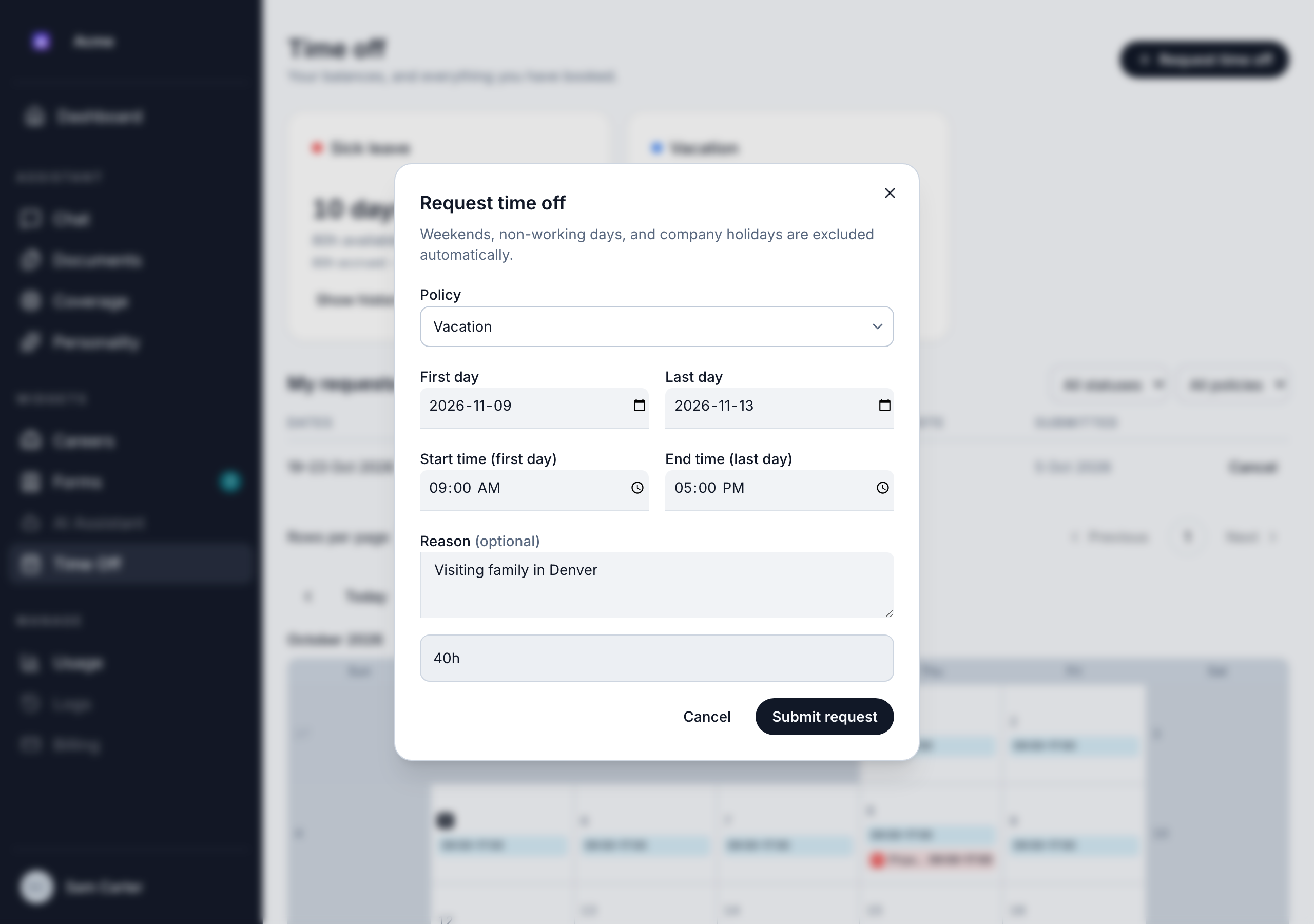
- Click Request time off.
- Choose a Policy, such as vacation or sick leave.
- Choose the First day and Last day.
- Choose how much of the day you'll be away:
- For a single day: leave Full day ticked, or untick it and choose the time you're away with From and To.
- For several days: optionally set a Start time (first day) and End time (last day) if you start late or come back early. The days in between count in full.
- Optionally, add a Reason. Only you and approvers can see it.
- Check the total at the bottom of the dialog. It shows how much time the request uses.
- Click Submit request. You see "Time off requested."
If the policy needs approval, your request is Pending until an approver decides it. If the policy doesn't need approval, it's Approved right away and the time is taken from your balance.
How your time is counted
Bizbot counts only the time you would have worked:
- Your shift decides your working days and hours. A day you don't normally work, such as a weekend, isn't counted. A full day counts as your shift's hours, minus any unpaid break. For example, on a 9:00 to 17:00 shift with a 1-hour unpaid break, a full day is 7 hours.
- Company holidays aren't counted. If your request includes any, you see a warning that says how many company holidays in that range were not counted.
- Times must fall inside your shift. You can't request time outside your working hours.
If your range has no working days at all, for example only a weekend, you see "That range contains no working days once weekends and holidays are excluded."
If your balance is too low
If the request needs more time than you have, the dialog shows "You only have … available." and Submit request is turned off. Shorten the request, choose another policy or ask an approver about your balance.
Your available balance already takes off time in your other pending requests. Policies marked Unlimited have no balance to run out of.
Other checks
- Overlapping requests: you can't book the same time twice. If a request overlaps one you already have, Bizbot tells you which date and time clash.
- Short notice: if your organization asks for notice, you see a warning such as "This request gives less than 3 days of notice." It doesn't block the request, but approvers see it.
Who is notified
When a request needs approval, Bizbot emails members who can approve time off and have Time Off notifications turned on. The email has a Review request button. See Approve requests.
Requests under policies that don't need approval don't send an email.
Arrange coverage while you're away
If you use coverage, you can let a teammate cover your responsibilities while you're away.
- Right after you submit, click Set up coverage in the confirmation message. Or open the request later from Scheduling > Time Off.
- Under While I'm away, choose how reachable you are: Unreachable: don't contact me, Emergencies only or Reachable if needed.
- Click Set up coverage and choose who covers for you.
If the request is cancelled or denied, the coverage linked to it ends too. See Grant coverage.