View your requests
This page shows you how to check your time-off requests and balances, and how to cancel a request.
Any member, for their own requests.
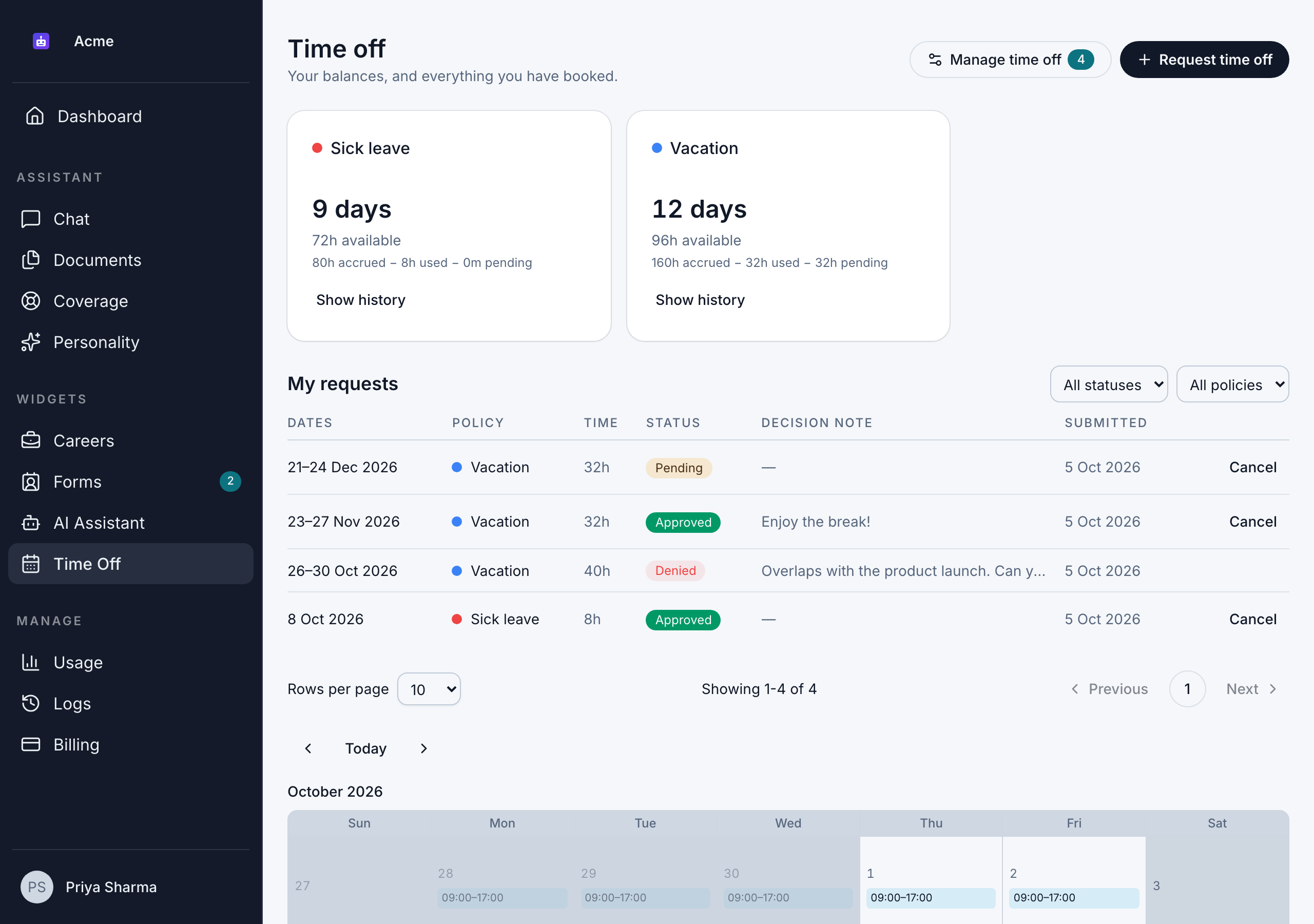
See your balances
Go to Scheduling > Time Off. There's a card for each policy that applies to you, showing:
- The time you have left, in days and in hours ("… available").
- How it's worked out: "… accrued − … used − … pending". Accrued is what you've been given, used is time off you've taken or booked, and pending is time in requests that haven't been decided yet.
Policies with no limit show Unlimited.
See how a balance was worked out
Click Show history on a card. The history lists every change to that balance, newest first:
| Entry | What it means |
|---|---|
| Accrual | Time added to your balance |
| Annual grant | Your yearly allowance for the policy, added at the start of each leave year |
| Time off taken | Time taken or booked by an approved request |
| Refund | Time given back, for example when an approved request was cancelled |
| Carried over | Unused time moved into the new leave year |
| Expired | Unused time that didn't carry over at the end of the leave year |
| Manual adjustment | A change made by an admin, with their reason |
How allowances and leave years work
- Leave years: allowances run by leave year, the 12-month period your organization's allowances cover. It starts on January 1 unless your organization has set another date.
- Annual grants: at the start of each leave year, you get the policy's full yearly allowance. If you start partway through the year, you get a share based on how much of the year is left.
- Year end: whatever's left over either carries over, is capped, or expires, depending on the policy. See Manage time-off settings.
See your requests
Your requests are listed on Scheduling > Time Off, with their policy, time, status, decision note and when you submitted them. Use the filters to show one status or one policy.
| Status | What it means |
|---|---|
| Pending | Waiting for an approver. The time is held from your balance but not taken yet. |
| Approved | Approved, and the time is taken from your balance. |
| Taken | Approved, and the time off has started or is over. |
| Denied | Not approved. Nothing was taken from your balance. |
| Cancelled | Cancelled by you or by an admin. Any time taken was refunded. |
Click a request to see its details: the status, the total time, your reason, the approver's Decision note and when it was Decided, and the individual days it covers.
Cancel a request
You can cancel a request that's Pending, or Approved but not started yet.
- On Scheduling > Time Off, find the request and click Cancel.
- Check the message:
- For a pending request: "This request has not been decided yet, so nothing has been taken from your balance."
- For an approved request: the time will be refunded to your balance.
- Click Cancel request. You see "Request cancelled." Click Keep it to go back without cancelling.
Once time off has started (Taken), you can't cancel it yourself. Ask an admin to adjust your balance if you came back early.
When you cancel an approved request, approvers who have Time Off notifications on get an email. If you had arranged coverage for the request, it ends too.
Emails about your requests
Bizbot emails you when an approver decides your request:
- "Your time off request was approved": your dates are booked. The email shows the policy, the time, who decided, any note and your remaining balance.
- "Your time off request was denied": your dates weren't approved, with the approver's note if they left one.
- "Your time off request was revoked": an admin cancelled your approved request, and the time went back to your balance.
Each email has a View your time off button.
See who else is away
The calendar on Scheduling > Time Off shows approved time off for everyone in your organization, and your own pending requests. Use it to check whether teammates are out before you book. Who's out on the Dashboard shows the next 7 days.